Assessment Follow-Up Reports
To access IRM assessment reports:
 In the navigation pane, click Assessment > Results.
Assessment
Campaign results tree
This report presents results of a given execution campaign session. It presents entities/processes/controls as trees and indicates for each assessed control whether it is satisfactory or not.
Access path
Assessment > Results > Control Asssessment Campaigns > Campaign Results Tree.
Parameters
Parameters |
|---|
Campaign |
Assessment session |
Campaign Result Matrix by Entity
This report presents as a matrix the results of each session of a given assessment campaign.
Access path
Assessment > Results > Control Assessment Campaigns > Campaign Result Matrix by Entity.
Parameters
Parameters |
|---|
Campaign |
Entity |
Entity type |
Aggregation Report
The aggregation report presents in tree form all objects from the selected root entity, together with their last assessment.
Access path
Assessment > Results > Aggregation
Parameters
Parameters | Remarks |
|---|---|
Begin Date | |
End date | By default current date |
Context root | Tree root entity |
Aggregation schema | An aggregation schema should be selected from the proposed list |
Assessed characteristics | Assessed characteristics proposed depend on the selected aggregation schema. |
 An aggregation schema is a series of steps enabling consolidation of assessment results according to specified assessment rules.
Follow-Up
Session Follow-Up
This report enables assessment session follow-up.
Access path
Reports > Execution > Execution Session Follow-Up
Parameters
Parameters |
|---|
Session |
Result
A summary displays general information on the current assessment session.
This report presents a number of charts concerning assessment progress:
• Percentage of completed questionnaires
• Distribution of questionnaires by status
• Distribution of questionnaires delegated/not delegated
• Distribution of questionnaires by status, for each respondent
• Distribution of questionnaires by status, for each assessed object
Session Statistics
This report displays the questionnaire data of a given assessment session and is used to analyze the distribution of answers.
Access path
Reports > Follow-Up > Session Statistics
Parameters
Parameters | Remarks |
|---|---|
Campaign | Mandatory |
Session | Mandatory |
Report example
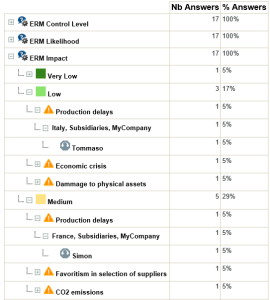
Result
A tree appears:
• in rows: questions/answers, together with respondents
• in columns: for each question/answer, the number of respondents
This tree specifies who has answered what to which question.
By expanding a reply, we obtain the name of the assessor and the risks to which the reply relates.