Specifying Costs Components
In HOPEX IT Portfolio Management costs on a component can be specified by:
• a user with "Financial Controller" role, who has been declared responsible for the component in question;
• the portfolio manager.
 To define those responsible for an application, see Application Characteristics.
One or several cost lines can be associated with a component.
 A cost line enables identification of cost kind and type.
A cost line is characterized by:
• a type : operating or capital.
• a nature: infrastructure (for a deployment), license (for an application), service, manpower.
• l'state of the life cycle of the component concerned, such as specification or development phases.
Associated with a cost line can be:
• a periodic expense
• one or several fixed expenses
Creating a cost line
To associate costs with an application for example, you must begin by creating a cost line.
You can create cost lines singly, or automatically create three cost lines corresponding to the three cost natures possible for an application: license, service, manpower.
To create a cost line for an application:
1. Click the icon of the application and select Properties.
2. In the properties page, click Costs.
3. In the Cost linesection, click New.
The Creation of a cost line box opens.
4. To create a single cost line, select option Create only one cost line.
5. Click Next.
6. Specify the Nameof the cost line.
7. Select the Cost Type.
8. Select the Cost Nature.
9. Select the State of the application life cycle.
The states proposed in the drop-down list are the states of the life cycle associated with the object life.10. Click Next.
The periodic expenses creation dialog box opens.
Fixed expenses, which can be multiple, are defined separately. For more details on fixed expense creation, see Creating a fixed expense.11. Define the periodic cost and click Next.
For more details on fixed expense creation, see Modifying a periodic expense.12. Click OK.
The new cost line appears in the Cost Line.
Creating a fixed expense
Fixed expenses associated with a component are accessible from the component properties pages, in the Costs tab.
To create a new fixed expense on an application from a cost line:
1. Click the icon of the application and select Properties.
2. In the properties page, click Costs.
3. In the Cost Line section, select the cost line that interests you.
4. In the Fixed Expenses section, the list of fixed expenses associated with the cost line appears. In this section, click New.
The Creation of Expense dialog box opens.
5. Specify:
• the Name of the expense
• the Date of the expense,
• the Amount of the expense.
6. Click OK.
The new expense appears in the Fixed Expenses section.
Modifying a periodic expense
To modify characteristics of a periodic expense associated with an application:
1. Click the icon of the application and select Properties.
2. In the properties page, click Costs.
3. In the Cost Line section, select the cost line that interests you.
4. Columns specific to the periodic expense are associated with the cost line:
• Periodic cost
• Periodicity
• Up/Down Amount
5. Click the column to be modified and enter the new value.
If you indicate a negative amount, at each time period the amount will be deducted from the periodic cost until this reaches zero.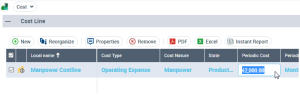
Application System Costs
The cost of an application system can be calculated from its different components or or globally:
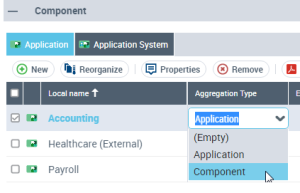
• When an application used by the application system is specified "Application", the cost of this application is not charged to the application system, in other words the cost relates only to the application.
• When an application used is specified "Component", the cost of this application is charged to the application system and is no longer listed on the application.
To indicate that an application is used by the system as a component:
1. Open the properties of the application system.
2. Click the drop-down list then Characteristics.
3. In the Component section, select Application Component to display applications making up the application system
4. Select the required application , and in the Aggregation Type column, select "Component".