Defining Business Capabilities
Presentation
A business capability defines an expected skill.
 A business capability is a component of information system processing. Processing can for example correspond to an activity or an enterprise business.
For example, to respond to a customer satisfaction objective, the organization must be able to provide services conforming to contractual commitments.
A capability map describes what the enterprise is capable of producing for its internal needs or for meeting the needs of its clients. It is thus based on the main business capabilities of its activity at a given moment.
A business capability map is a set of business capabilities with their dependencies that, together, define a framework for an enterprise stage.For example, the standard capability to provide pizzas is based on the "Preparation of pizzas" and "Delivery of pizzas" business capabilities.
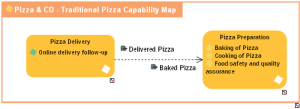
In HOPEX IT Portfolio Management you can generate in the form of a report a business capability map for a portfolio.
The business capability map of a portfolio reflects functional coverage of applications of a given portfolio. It is particularly useful to view the functional coverage change of application assets over time. See "Generating the Business Capability Map of a Portfolio", page 86.
Capabilities can be previously defined in a global capability map. The existence of a business capability map of the company enables automatic creation of business capability maps subsequently generated at the portfolio level.
Creating a business capability
To create a business capability:
1. Connect to HOPEX IT Portfolio Managementas functional administrator.
2. Click the navigation menu, then Environment.
3. In the edit window, click Standard Navigation.
The list of enterprises and libraries appears in the edit window.
4. Click the icon of the enterprise or library to which the capability map will be attached and select New > Building Block.
5. In the window that appears, select the "Business Capability" object type.
6. Click Next.
7. Enter the name of the business capability.
8. Click OK.
You can also create a Business Capability from an application.
To associate a capability with an application, see Defining Application Functional Scope.
Business capability properties
To view properties of a business capability:
 Click the business capability icon then Properties.
Under the Characteristics page, you can define:
• The Color attribute: the value given to this attribute changes the shape color representing the area, district or block displayed in the diagram.
• The owned capabilities
The Applications page allows you to specify the applications that realize the business capability.
Creating a global business capability map
The administrator can create the global capability map in the Environment navigation pane.
To create a global business capability map:
1. Connect to HOPEX IT Portfolio Managementas functional administrator.
2. Click the navigation menu, then Environment.
3. In the edit window, click Standard Navigation.
The list of enterprises and libraries appears in the edit window.
4. Click the icon of the enterprise or library to which the capability map will be attached and select New > Building Block.
5. In the dialog box that appears, select the "Business Capability Map" object type.
6. Click Next.
7. Enter the name of the business capability.
8. Click OK.
Creating the diagram of a business capability map
To create a business capability map diagram:
Right-click the business capability map that interests you and select New > Business Capability Map Diagram.The diagram opens in the edit area. The frame of the business capability map described appears in the diagram.
Defining the components of a business capability
A Business capability component is the involvement of a business capability in the context of a business capability map (one and only one) linked to an enterprise.
To add a business capability composition to a business capability map diagram:
1. In the diagram insert toolbar, click Capability Composition.
2. Click in the frame of the business capability map.
The creation window for a capability composition opens.
3. Click on the arrow associated with the Name field and select the business capability that interests you.
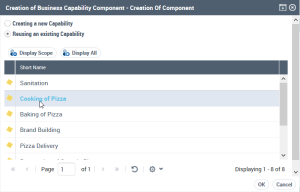
4. Click OK.
The capability composition appears in the diagram.
Defining business capability dependencies
A dependency link between one capability composition and another is used to specify the elements on which this dependency is based.
For example, for "Delivery of pizzas" use "Prepare the pizzas". Note that the expected result (business effect) of "Delivery of pizzas" is a "Pizza delivered" and the expected result (business effect) of "Preparation of pizzas" is a "Cooked pizza".
Dependent Business Effect and Desired Business Effect are the business capability results.
To create dependency links between two capability compositions:
1. In the insert toolbar of the diagram, click Business Capability Dependency.
2. Click the user component, and keeping the left mouse button pressed, move the cursor to the assembly used.
3. Release the mouse button.
The capability composition appears in the diagram.
To enter the results concerned by a dependency between two business capability components:
1. Open the Characteristics properties dialog box.
2. Enter the user component result in the Dependent Business Effect field.
For example, "Pizza delivered".
3. Enter the user assembly result in the Desired Business Effect field.
For example, "Pizza cooked".