Mapping Diagram
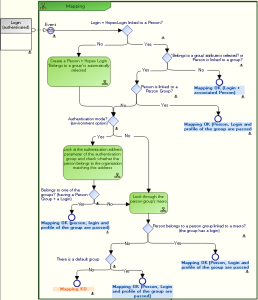
The following diagram fully describes the process of mapping a user, whose login is authenticated, with a person in HOPEX.
Principle
Once the mapping service is informed of the identifier of the person requesting connection, the service checks if this identifier is referenced in the repository:
 This identifier is usually the login, but if an authentication parameter (LDAP or SSO) is defined and that its "Is Index On Person" attribute is selected, then the service checks if the value of this attribute does not exist on a person, and in this case it is this identifier that is used to determine if the person exists in HOPEX or not.
• Case 1:
The identifier is referenced in the repository and does not belong to a group.
• Case 2:
The identifier is referenced in the repository and belongs to a group.
• Case 3:
The identifier is not referenced in the repository and does not belong to a group.
When a default group is defined, any person not belonging to a specific group, but with the "Belongs to a person group" attribute selected, must belong to the default group.
Authentication Group
Authentication groups
LDAP authentication group
An LDAP group is an organization within a directory. It is often characterized by the OU type.
Example: the LDAP Quality group has the unique identifier (Distinguished Name):
OU=Quality,OU=UNIVERSITE,OU=FRANCE,DC=fr,DC=mega,DC=com
All persons belonging to this organization belong to the LDAP group.
LDAP groups represent a list of persons distributed by organization. Users belonging to an LDAP group use configuration available on the group:
• HOPEX repository connection
• access to profiles
The LDAP group defines a group or organization in the LDAP directory or Active Directory. It contains a list of users authorized to connect to the application concerned with the group configuration.
SSO type authentication group
The SSO authentication process is characterized by claims. These claims include the groups or roles the user belongs to. These groups have a unique identifier that can be entered in the Authentication identifier attribute.
Example: the claim role "rCmp-WebAXDevRemoteRdpTier2@MEGA”
Defining an authentication group
Prerequisite: in case of LDAP authentication, the LDAP Server must be configured, see Configuring LDAP Authentication.
To define an authentication group:
1. Access the authentication group management pages.
2. In the edit area, in the Authentication groups tab, right-click Authentication groups folder and select New > Authentication group.
The authentication group creation window appears.
3. In the Name field, enter a name for the authentication group.
4. (LDAP authentication) In the LDAP server field, select your LDAP server.
5. In the Authentication identifier field:
• (LDAP authentication) enter the identifier of the group within the LDAP directory or Active Directory.
Example: OU=ResearchandDevelopment, OU=UNIVERSITE,OU=FRANCE,DC=fr,DC=mega,DC=com
• (SSO authentication) enter the identifier of the claim with which you want to map the authentication group.
Example: the claim role "rCmp-WebAXDevRemoteRdpTier2@MEGA”
6. Associate an HOPEX person group with the authentication group.
Associating a HOPEX user group with an authenticated user group
Once the authentication group is created, you must associate it with a HOPEX user group.
So that when a person of the HOPEX person group connects to HOPEX, he/she is authenticated thanks to the user group authenticated in the LDAP directory or SSO service.
If a default person group is defined (example "Guests") any person in HOPEX with the Belongs to a person group attribute selected (see Person Properties) automatically belongs to the group defined by default (example: "Guests").Prerequisite: the HOPEX person group and the authenticated user group are created.
See:To associate a HOPEX person group with an authenticated user group:
1. Access the properties of:
• the authentication group
or
• the person group.
2. Display the Characteristics page.
3. Click the arrow of:
• the Person group field and connect the HOPEX person group to be associated with the authenticated user group.
or
• the Authentication group field and connect the authenticated user group to be associated with the person group.
The authentication Group query wizard appears.
 Use the [Ctrl] key to select several authentication groups at the same time.
The HOPEX person group is associated with the authenticated user group.
Defining an Authentication Parameter
An authentication parameter is a parameter that exists in the LDAP directory or SSO service and that is associated uniquely with a HOPEX attribute.
Configuring an authentication parameter is useful when importing persons from an LDAP directory or an SSO service.
Authentication parameters enable to:
• identify a person from the authentication server.
• predefine the characteristics of a person created in HOPEX, using the mapping between the authentication parameter values (stored in the LDAP directory or SSO service) and the HOPEX MetaAttributes.
Example (LDAP): the "E-mail" MetaAttribute of the person is initialized with the "mail" LDAP parameter of the person in the "Active Directory" LDAP directory (if mapping has been carried out).
Example (SSO): the "E-mail" MetaAttribute of the person is initialized with the "email" claim of the person in the SSO service (if mapping has been carried out).
To configure an authentication parameter:
1. Access the authentication management pages.
2. Select Authentication parameters.
3. Click New  .
.
.The authentication parameter enables pre-completion of characteristics of a person corresponding to the authentication parameters.4. Enter a Name for the authentication parameter then click Properties  .
.
.Examples: E-mail, Name (person).
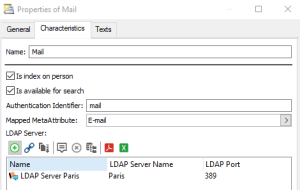
5. (Optional, "expert" metamodel access) Select Index on Persons, so that the parameter value enables unique identification of a person. If a person in HOPEX has the same e-mail as a person defined in the LDAP directory or SSO service, this person is reused (instead of creating a new person and risk duplicating the same person).
6. (Optional, "expert" metamodel access) Select Is available for search so that an e-mail can be entered in the import entry area.
Example: if you enter ctodd@mega.com, you should find Clara TODD.
7. In the Authentication identifier field, enter:
• (LDAP) the name of the attribute corresponding to the parameter within the LDAP directory or Active Directory.
Examples: mail, DN
• (SSO) the claim associated with the SSO service.
Example: email
8. In the Mapped MetaAttribute field, click the arrow and select Connect MetaAttribute.
9. Perform the search and select the HOPEX MetaAttribute you want to associate with the authentication identifier (LDAP or SSP) defined step 7.
Examples: E-mail, Name (person).
10. (LDAP) In the LDAP Server pane, click Connect and connect the LDAP server.