Securing the application
Note that the following sections are normally already configured by default with HOPEX V1R2-V1R3 CP8, as well as with HOPEX V2 regardless the patch level. You can check those, and tune up the second section depending on the timeout you want to put in place.
Hiding the error details
To prevent the end users from seeing the error details and get knowledge about how the application is written, some actions can be taken to hide those:
1. Open the Administration module of Mega on the web server (Administration.exe, in the installation module of Mega).
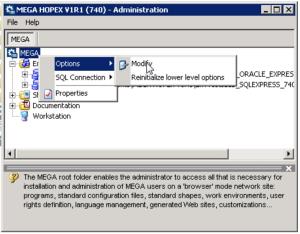
2. Open the options at the root level:
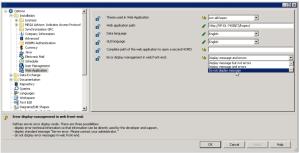
3. Go to “Installation”, and then “Web Application”, and change the option “Error display management in web front-end” to “Do not display message”:
4. Close the options and the Administration module.
5. Locate the web.config file of the “Hopex” web application (by default in “C:\inetpub\wwwroot\HOPEX”), and edit it.
6. Add the following key in the file :
<add key="HideErrors" value="1"/>
Activating the automatic logoff
You can activate an automatic logoff of the users after a certain time of inactivity. To do so:
1. Open the Administration module of Mega on the web server (Administration.exe, in the installation module of Mega).
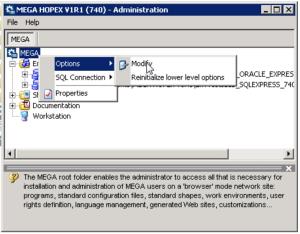
2. Open the options at the root level:
3. Go to “Workspace”:
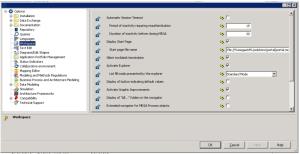
4. Select “Automatic Session Timeout” option, and tune up the parameters “Period of inactivity requiring authentication”and “Duration of inactivity before closing MEGA” to the wanted values (in minutes, by default they are set to 15 and 20, respectively) :
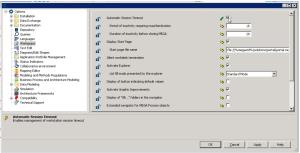
5. Click OK, and close the Administration module.
6. Restart the application to validate this whole configuration.
Hiding the information when entering the wrong credentials
For versions, before V1R2 CP15, or V1R3 CP15, or V2 CP03, when someone enters a wrong password of an existing user, or tries to authenticate with a user that doesn't exist, he will get a clear message telling him what is the case.
If you want to have a generic message preventing someone from discovering the users declared in an environment, you will need to upgrade to the above-mentioned versions of the application.
The message will then be this one:
“No such login, or no security question defined for this login, or the configuration of your login does not allow you to reinitialize your password. Check the login you entered or contact your HOPEX Administrator.”