Using GBMS Environments
The following points cover basic operations that can be executed on a GBMS environment.
Creating a GBMS Environment
To create a GBMS environment:
1. Connect to HOPEX Administration.
2. In the navigation tree, right-click Environments and select New.
3. Enter the Name of the new environment.
 The name of the environment must respect Windows folder naming constraints.
4. (Optional) To modify the default environment location, click Browse.
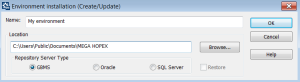
5. Select the Gbms repository server type for the new environment.
6. Click OK.
Creation and installation of the new environment are started.
(GBMS) The SystemDb repository is rebuilt and environment creation takes several minutes.(RDBMS) The SystemDb repository is built dynamically and environment creation can take several hours.
A directory is created. It hosts the environment structure.
When you create a new environment, it is automatically referenced, and it appears in the list of environments. The environment is identified by the complete path of its root directory. It is therefore essential that all users see the network resource in which it is located under the same name.Copying a GBMS Environment
 Prior to this operation, check that there is no private workspace active on the environment.
To copy an environment:
 With Windows explorer, copy the following files and folders:
• The environment root directory, which contains:
• the environment system repository
• all or some of the repositories that it references
• the shared reports (MS Word) folder, "Document"
• the "MEGA_Usr" folder containing the custom shapes and style sheets.
• Directories of repositories that are not stored under the environment root.
At the time of this operation, it can be useful to delete work folders of users and administrators.When the operation is completed, you should check in each repository that the reports (MS Word) and Web Sites point to the correct network locations.Deleting a GBMS Environment
Prior to this operation, check that there is no private workspace active on the environment.To delete an obsolete environment with all its repositories.
To delete a GBMS environment:
1. Delete the reference for the old environment.
2. From the Windows explorer, delete the root directory of the environment and the folders of repositories that will not be hosted under this root.