Planning Audits Using a Gantt Chart
A report enables the audit director to plan the different audits of an audit plan.
Displaying the Gantt chart
To display this report:
1. Under Audit > Audit Plans, select the required audit plan.
The plan properties appear in the edit area.
2. In the properties page, click Planning.
A Gantt chart describes audits of the audit plan.
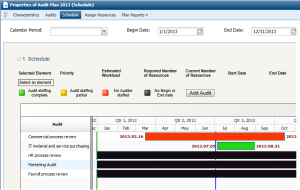
By default, planning relates to the current year, but you can view audits over a more precise period.
You can redefine the display period of the Gantt chart by selecting a calendar period or specific begin or end dates.
You can modify audit dates in the diagram:
• by moving the period begin or end dates using the mouse.
• by clicking the center of the period and by moving the mouse to simultaneously move the begin and end dates.
Zoom and reframing functions at the right of the chart allow you to customize display.
 Zoom in on calendar
 Zoom out
 Reframing
 You can also zoom within the Gantt chart using the mouse wheel.
Adding an audit from the Gantt chart
To add an audit from this chart:
1. In the Planning tab of the plan properties dialog box, click Add an audit.
2. Click the Save button.
The audit appears in black.
To plan a newly-created audit:
 In the Planning tab of the plan, resize the audit from its extremities to define:
• begin date
• end date
The audit appears in red: you must assign auditors. For more details, see Assigning Auditors to Audits.