Managing Teams
Before planning tests, appropriate teams must be set up and roles and responsibilities assigned.
Tools are available that enable definition and display of the skills of team members.
Creating Controllers
To create a controller, you must create a person and associate the "Control Tester" profile.
 For more information on creation of users and assignment of profiles, see Assigning a Profile to a Person.
Managing Controller Skills
HOPEX Internal Control enables management and viewing of skills for each controller.
To do this, you must previously have defined:
• skill types
• skills list
• skill levels
Creating skill types
To create a skill type:
1. In the Administration desktop, select Skill Management > Skill Types.
2. Click New.
3. Enter a Name for the skill type, for example "Languages".
4. Click OK.
Creating skills
To create a skill:
1. In the Administration desktop, select Skill Management > All Skills.
2. Click New.
3. Enter a Name for the skill, for example "English".
4. Click OK.
The new skill is added to the list of skills.
In properties of the skill you can indicate the Skill Type to which it is attached, for example "Languages".
Creating skill levels
You must now create skill levels to be associated with each skill type.
To create a skill level:
1. In the Administration desktop, select Skill Management > Skill Levels.
2. Click New.
3. Enter a Name for example "Beginner" for "Languages" skill type.
4. Click OK.
5. In skill level properties, select the Skill Type to which it is attached, here "Languages".
6. In Skill Level Internal Value, enter a figure corresponding to the skill level, for example "1" for "Beginner" (while "4" could correspond with "Experienced" in our example).
This figure gives a graphic view of the extent of controller skills in the test assignment page. 7. Click Apply.
8. Close skill level properties.
Defining skills for each user
To define the skills of a user:
1. In the Administration desktop, select Skill Management > Manage Skills by User.
2. Select a user and click the Properties button.
3. In the properties page, click Skills.
In the page that appears, you can specify user skills as a function of previously defined skill types and skill levels.
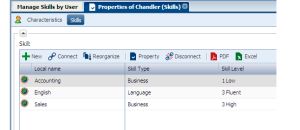
Example of skills
Viewing skills
To view the skills and skill levels available within the team:
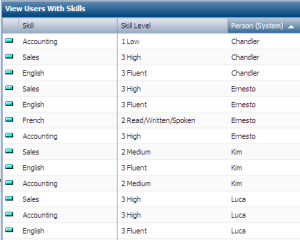
 In the Administration desktop, select Skill Management > View Users and Skills.
A list appears. You can sort the list by skill, skill level and user by clicking the header of the corresponding column.