Configuring Bridges in Diagrams
Bridges can help you improve the readability of diagrams when several lines cross each other. Those lines can be drawing lines, links, sequences, etc.
|
Style of bridge option value
|
Icon in the diagram toolbar
|
Appearance in the diagram
|
|---|---|---|
|
Disabled
|
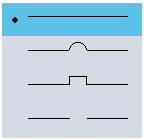 |
 |
|
Semi-circle
|
 |
 |
|
Empty space
|
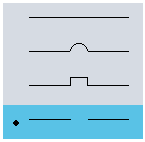 |
 |
|
Rectangular
|
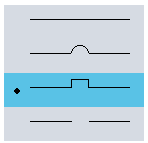 |
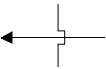 |
Lines created in a diagram are associated by default to the style of bridge configured in the user options at the time the diagram was created. However, you can define a style specific to a diagram. See Modifying the appearance of bridges in a diagram
Parameterizing the default appearance of bridges
To modify the default appearance of bridges in diagrams:
1. Access user options.
2. In user options, select Diagrams/Edit Shapes.
The option Style of bridges enables you to specify how bridges display by default in the application.
Modifying the appearance of bridges in a diagram
You can modify the style of bridges applied by default in diagrams or modify the style of a specific bridge.
To modify the default appearance of bridges a diagram:
 In a diagram toolbar, click the
  icon and select a type of bridge.
This style applies to new bridges created in the diagram.
To change the bridge of a specific line:
Select the line you are interested in and select a type of bridge.You may apply a different bridge style to each line of the diagram.