Defining an event
Creating Events
To create an event:
1. Click the Event button  in the insert toolbar.
in the insert toolbar.2. Click on the diagram.
The Create Event dialog box opens.
3. Enter the name you want to give the event.
 You can directly click the OK button (Web Front-Endo) or Finish (Windows Front-End) of the wizard. A catching event without type is created.
4. Select the nature of new event.
By default, the nature is Catching.5. Click Next and select the type of event you wish to create.
By default the type is None.6. Click OK (Web Front-End) or Finish(Windows Front-End).
The new event appears in the diagram. The shape of the event respects conventions linked to its type and nature.
By default the event is interruption.You can directly create the most frequently used events:
1. Click the Events button in the toolbar and select from the predefined events the event that interests you.
2. Click on the diagram.
The new event appears in the diagram.
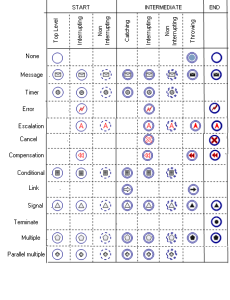
Event natures
The nature of the event enables specification of its position in the processing.
• Start: start of the processing sequence
• Catching: awaiting an event (arrival of a message, signal, etc.) before continuation of processing
• Throw: triggering an event (message, signal, etc.) and continuation of processing
• End: end of processing
Event types
Event type enables specification of what will trigger the event and what will be triggered by the event.
• None the trigger is not specified, generally at the start or end of a process
• Message: the event is receiving or sending messages
• Timer: the event is triggered by a timer
• Error: the event is triggered by errors or throws errors that cause interrupt of the process
• Escalation: the event is triggered by an error or throws a non-critical error
• Cancel: the event reacts to cancellation of a process step or triggers cancellation
• Compensation: the event handles or triggers compensation of a failed process
• Conditional: the event is triggered by a condition
• Link: the event is used to connect two sections of a process
• Signal: the event waits for a signal or throws a signal. One signal thrown can be caught multiple times
• Finish: the event indicates that all process steps should be immediately ended without compensation or event processing
• Multiple: the event has multiple triggers
• Multiple: the event has several simultaneous triggers
Current process interruption
The current process may be interrupted when an event occurs. This characteristic of the event is specified in Interruption which can be one of the following values:
• Interruption
• Non interruption
By default the event interrupts the current process.Event type and nature combinations
The following table presents valid combinations of event type and nature.