Assigning Org-Units to Participants
Org-units, either new or already created, can be assigned to participants of a process.
Example: The "Analyze Purchase Request" operation in the "Process Purchase Request" process, handled by the Purchasing Manager, is assigned to the Purchasing Assistant when the manager is absent. To represent this, we assign org-units "Purchasing Manager" and "Purchasing Assistant" org-units to the same participant.
Assigning org-units
To assign an org-unit to a participant:
1. Right-click the participant name.
2. In the pop-up menu of the participant, "Purchasing Manager" in the example, select Properties.
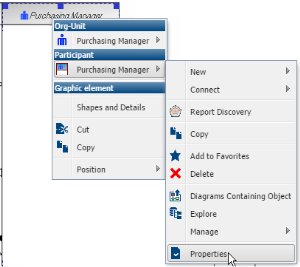
The properties windows opens.
3. In the Characteristics tab, Assignment section, click the Connect button.
A wizard opens.
4. Select Org-Unit and select Propose.
A list of proposed org-units is displayed.
5. Select the org-unit you wish to assign to the participant, "Purchasing Assistant" in the example, and click OK.
The assignment appears in the properties dialog box of the participant..
Multiple participants
To specify that several instances of the participant can be involved:
1. Open the properties of the participant.
2. Click Characteristics.
3. In the Multiple Participant field, select Yes.
The participant takes the following form:

4. Click OK.
Conditioning org-unit assignment
To condition participation of an org-unit:
1. Open the participant properties dialog box.
2. Under Characteristics in the Assignment section, select the line of the org-unit of which you wish to condition assignment.
3. Click in the Conditioning column.
4. Enter the text of the condition.
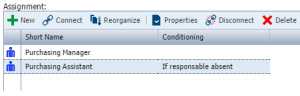
5. Click OK to close the properties of the participant.
The text of the condition appears between brackets alongside the name of the org-unit in the participant title bar.