Specific questions
You can add new questions to your questionnaires for your processes.
Your question then appears in the associated questionnaire in the corresponding section: "Process execution" or "Process performance".
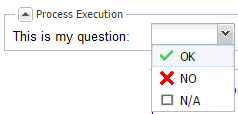
OK/NO/NA specific question type
Creating a specific question (Execution)
To create a specific execution question:
1. Open the properties of the process in question.
2. Click the Assessment tab of the process and select Specific Questions (Execution).
3. Click the New button.
The question creation page appears.
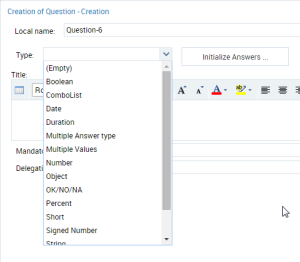
4. Specify the Local Name of the question.
 The local name of the question is not visible to the questionnaire respondent.
5. Specify the Title, which represents the question as it appears in the questionnaire.
6. You can indicate:
• The Mandatory Element field (indicates the mandatory or optional nature of the answer to this question).
• The Delegation Allowed field (specifies if the answer to this question can be assigned to another person by delegation).
7. Select the Type of question enabling specification of the answer format.
Depending on the Type of question, an Answer section appears. Answers of "Multiple answers" type require require manual creation of answers. For more details, see Creating Possible Answer Values.8. Click OK.
Question Types
The question types that can be used to directly enter an answer are listed below.
• Text: to enter the text.
• String: to enter a string of characters in a field.
If you must display your answer in more than one field/row, select the Multiple Answer Type value.• Multiple Answer Type: to display several answer fields for the same question.
Example of use: to enter an address you may need several fields.
 This type of answer requires creation of answer values. For more details, see Entering possible answer values.
• Signed Number: to enter a negative or positive number
• Timespan: to enter a timespan
• Floating: to enter a a floating point number.
• Percentage: to enter a percentage.
• Integer: to enter a short integer.

• Date: to enter a date using a calendar

The types of questions used to select a value using predefined suggestions are listed below.
• OK/NO/NA: provides a drop-down list containing three values:
• OK
• NO
• N/A (Not Applicable)
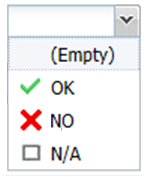
• Drop-down List: to select a value from a drop-down list.
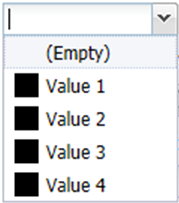 This type of answer requires creation of answer values. For more details, see Entering possible answer values.
• Radio button (vertical): to display vertical radio buttons in the answer.
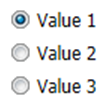 This type of answer requires creation of answer values. For more details, see Entering possible answer values.
Entering possible answer values
You must specify the answer values possible if you have defined the following question types:
• multiple answer
• drop-down lists
• radio buttons (vertical)
In this case, an Internal Default Value field and a Possible Answer Value section open automatically in the question creation page.
Creating Possible Answer Values
In this case, an Internal Default Value section opens automatically in the question creation page.
To create a possible answer value:
1. In the Possible Answer Value section, click New.
A possible answer value creation window opens.
2. In the Answer Value field, specify a value.
This value can be used by quotation rules.3. Indicate the color associated with the answer value.
You have two possibilities:
• Specify a MetaPicture if you have one.
The MetaPicture enables association of an image with an answer value.• Specify RGBColor.
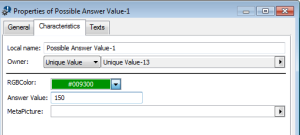
4. Click OK.
You must create at least two possible answer values.Defining an answer value by default in the event of a non-answer
You can allocate an internal default value for the drop-down list and radio button type questions. This value is used if the respondent omits to answer a question.
To specify an internal value by default:
 In the properties page for the question, specify the Internal Default Value field.
Creating a specific question (Performance)
You create a question specific to the performance of your process in the same way as you do for an execution assessment (see Creating a specific question (Execution)).
The question then appears in the direct assessment questionnaire (Performance).