Assessing risks directly
Direct assessment provides, at a given date, assessment of a risk on an entity of the organization.
You can carry out:
• direct assessment from a risk
• multiple assessment from a table
Using Direct Assessment
You can create new assessments to globally assess a risk on all objects of the organization to which it is connected (ie. entities).
This is an "expert view" assessment.
Creating direct assessments
To create an assessment:
1. Select a risk and open its properties.
2. Select the Assessment tab.
3. Click the Evaluate button.
4. Select the context in which the risk is to be assessed, then click Next.
 The contexts are available only if there is more than one.
5. Specify characteristics values:
• Impact: the impact of the risk when it occurs.
• Likelihood: the probability that the risk will occur.
• Control level
 Control level characterizes efficiency level of control elements deployed (controls) to assess the risk.
6. Specify the assessment date.
7. Click OK.
An assessment is created.
The following values are calculated:
• gross risk
The inherent (or gross) risk indicates the risk to which the organization is exposed in the absence of measures taken to modify the occurrence likelihood or impact of this risk. This is the result of multiplying impact value and likelihood value before taking account of risk prevention or reduction measures.• net risk
The residual (or net) risk indicates the risk to which the organization remains exposed after management has processed the risk. is the difference between the Inherent Risk and the Control Level.Consulting assessment answers
The manager can view answers entered by the respondent when performing direct assessment. He/she can also decide to modify values calculated from these answers if he/she considers them inappropriate.
To view answers used to calculate assessed characteristics values:
 In the Assessment tab of the assessed object properties, right-click the measurement that interests you and select Display Node.This menu is not available in the context of multiple assessment.
Answers used as the basis for calculation of values appear. They are in read-only only.
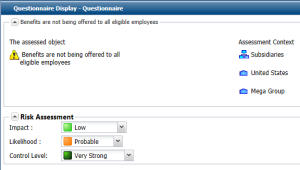
The responsible/manager can decide to modify values resulting from answers.
To modify assessed characteristics values:
1. Open the properties of the assessment you want to modify.
2. Modify values in the Signed Value column for each assessed characteristic value.
These values replace values calculated from answers given by the respondent.
Initial values are visible in the Calculated Value column.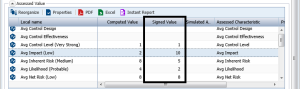 The values specified in the Signed Value column are not used in reports supplied by default. You can however call a MEGA professional to include these values in your questionnaires.
Using the Direct Assessment Matrix
You can specify values directly in a matrix to assess several risks simultaneously.
To assess several risks simultaneously:
1. In the Risk desktop, select Risk Library > Direct Assessment > Multiple Assessment Table.
An empty table is displayed in the edit area.
2. Click Connect Objects to be Assessed.
A tree appears.
3. Select the risks that interest you in the context of the relevant entities, and click OK.
If assessments have already been carried out, the most recent assessment values are presented in columns.4. Click in the cell corresponding to a characteristic for a given risk, for example "Impact".
5. Select the required value.
6. When specification is completed, click Validate Assessment.
7. Modify the assessment Effective Date if necessary and click OK.
A new assessment is created.
Assessment characteristics are as follows:
• Impact: characterizes impact of the risk when it occurs.
• Likelihood: characterizes probability that the risk will occur.
• Control Level: this characteristic gives an overall assessment of risk control level.