Must license utility
A launcher licensing.exe is installed in the root folder of the HOPEX installation. It is a shortcut to the program mgwusrmng.exe located in the 'System' folder of the HOPEX installation.
User Interface
Several windows are available:
• Select server path window: to locate a folder containing the Must license.
• User management window: to configure Must licenses located in this folder.
• Select HOPEX installation window: to locate the configuration folder of the HOPEX installation.
Select server path window
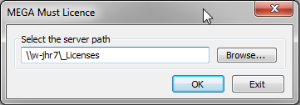
Click 'Browse' and select the folder containing the Must license to be configured. The 'OK' button is enabled as soon as a file with the .must extension is identified.
Verify that the server path is the same as the UNC address chosen for the license.
User management window
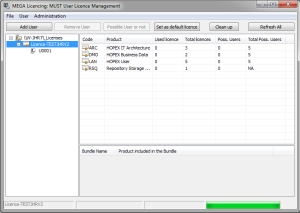
This window displays several elements:
• A top menu (File, User, Administration) and a toolbar 'Add User, Remove User..)
• The left pane displays the Must license available in the selected folder.
• The top right pane displays the products available for the selected license.
• The bottom right pane displays the bundle definition, if any.
The top right pane has several columns. The list is different if a user or a licence is selected:
• Code: the code of the technical product.
• Product: the name of the technical product.
• Connected: the number of users currently logged in to the product (this figure changes over time).
• Used licences: the number of licence tokens currently used for the product (this figure changes over time).
• Remaining licences: the number of licence tokens currently available for the product (this figure changes over time).
• Total licences: the number of licence tokens programmed for the product (this figure does not changes over time).
• Poss. User: the number of users that are set as possible users of the product (this figure changes over time).
• Remaining Poss. Users: the number possible users currently available for the product (this figure changes over time).
• Total Poss. Users: the number possible users programmed for the product (this figure does not changes over time).
The license status is displayed in the left pane:
|
Display
|
Status
|
Possible causes
|
 |
Valid
|
-
|
 |
Invalid
|
License has expired
Locking failed: the folder address containing the license file does not match the expected UNC
|
The user status is displayed:
|
Display
|
Status
|
 |
Connected
|
 |
Not connected
|
Select HOPEX installation window
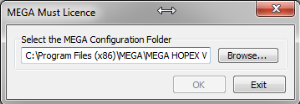
Click 'Browse' and select the folder containing the 'CFG' folder of the HOPEX installation to be configured. The 'OK' button is enabled as soon as the Megasite.ini file is identified.