FAQs and Troubleshooting
How can I use the Web licensing console?
See online documentation.
Note that the Web licensing console
• Needs to be installed when installing HOPEX Web Front-End.
• Needs to be allowed to the administrator in charge (security configuration).
• Does not allow to see user of tokens by login.
Do I have to configure possible users?
This is not required. If products are programmed in shared mode and the command line is configured, you do not need to explicitly configure possible users.
When user U0001 logs in, a token is requested for each product mentioned in the command line. If possible, user seats are available, U0001 is automatically configured as a possible user of the requested products. If tokens are available, U0001 can log in to these products.
How can I secure configuration of the HOPEX Must license?
If you do not want to configure systematically full control, you may configure advanced file permissions:
|
File
|
Location
|
Administrator rights
|
User rights
|
|
*.must
|
Example:
\\server001\Apps\Licenses\License-001.must
|
Modify
|
Read & execute
|
|
*.*
|
License subfolders containing the user files and token files. Example for License-001.must:
\\server001\Apps\Licenses\License-001 and subfolders
|
Modify
|
Modify1
|
1 By default, user files and token files are set as 'Not visible'.
The users considered vary with the front-end.
|
Front-end
|
Comment
|
|
HOPEX Web Front-end
|
Only the service account for the HOPEX (IIS) web application should be configured
|
|
Windows Front-end
|
Each end-user and administrators should be configured (ex: D01\U0001)
|
How can I prevent the dynamic declaration of possible users?
There is no way of preventing a user who is not explicitly configured from logging in.
If a possible user seat is available, the system will set a user requesting a token as a possible user. For this reason, it is recommended you configure possible users beforehand.
How can I get a log of license connections?
Supervision logs contain information regarding connection and disconnection. However, this is technical information and MEGA does not provide a report to consolidate and display this information.
What is the Router.ini file?
This file contains the mapping of users to licenses.
It is updated when configuration is made using the Must license utility ('Add user' and 'Remove user' actions). Deletion of this file will not remove possible user configurations.
How can I get the assignment of users to licenses?
No report is available. You can consult the Must license utility (left pane) or read the Router.ini file.
How can I get the assignment of possible users to product?
No report is available. Consult the Must license.
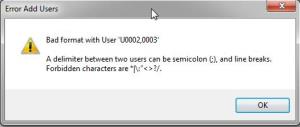
When adding a user, I get an error 'Bad format with user 'XX'!
This is because the data entered does not match the format expected.
How can I get the list of logins of users?
No report is available. Consult the Windows Administration Console (Administration.exe).
I do not know the names of the logins. Why can't the utility provide a list of existing login?
This is a design option. The list of existing logins is related to a HOPEX environment
This would require to login to a HOPEX environment which is not in the scope of the licensing utility.
How can I set possible users for a selection of users?
It is not possible to select multiple users in the left pane of the Must license utility. However, a specific operating mode enables the administrator to replicate the possible user configurations of products on a license for other users.
Procedure:
1. Run the Must license utility.
2. Select the license folder.
3. Select the license to be monitored in the left pane.
4. Select a user for this license.
5. Configure possible users of the different products in the top right pane:
o Select the products to be configured.
o Click the 'Possible User or not' button.
6. Select another user in the left pane: the same list of products is selected.
7. Click 'Possible User or not': the same configurations are replicated on the products selected.
Can I mix shared and dedicated modes?
Yes. Note that modes are set at the product level.
Is my license shared or dedicated?
To check the licensing mode:
1. Open the .Must license file with a text editor such as Notepad
2. Analyze configuration: the mode depends on the combination of 2 digits
<License Product>=T ; U
Where:
T: tokens
U: users
|
Licensing mode
|
Example
|
|
Dedicated mode (T=U)
|
(HITA) HOPEX IT Architecture=20 ; 20
|
|
Shared mode (T< U)
|
(HITA) HOPEX IT Architecture=20 ; 25
|
|
Concurrent mode/floating mode (T>U, U=0)
|
(HITA) HOPEX IT Architecture=20 ; 0
|
Note that modes are set at the product level.
Error message 1
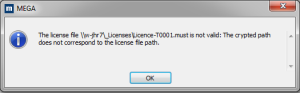
Possible reasons:
• The path of the folder containing the Must license file does not match the path programmed in the license.
• The license file name does not match the file name programmed in the license (license file was renamed).
Where is the latest license folder used saved?
With Windows Front-End, it is saved in the user settings file (MEGASETTINGS.INI) in a section [MGWUSRMNG].
Example:
[MGWUSRMNG]
LastServerPath=\\server001\Apps\Licenses
How can I check that an HOPEX installation is part of a cluster?
Check the file Megasite.ini of the installation. It must contain a section [Lan] and a variable clusterrootpath. Example:
[Lan]
clusterrootpath=\\mega\data
A message is displayed like You are not allowed to launch HOPEX V2R1 with your license file “xxxx.must”. It must be upgraded for this version. Please contact your sales representative to obtain a valid license file.
This is a standard warning with HOPEX V1R2-V1R3, HOPEX V2 or HOPEX V2R1.
Licences generated for lower versions (MEGA 2009, HOPEX V1R1) are not compatible with higher versions. Please contact your sales representative.