Upgrading HOPEX Data
Most changes apply to HOPEX programs. However, some changes apply to the systemdb repository. It is therefore necessary to update all HOPEX environments to benefit from all the changes and fixes. The procedure varies with the storage.
Upgrade HOPEX environments
Pre-upgrade:
• Verify that no workspace (ex-transaction) exists.
Procedure (GBMS storage):
For each HOPEX environment:
1. Start the Administration Console (Administration.exe).
2. Select the environment to be upgraded.
3. R click > Open.
4. Login with the System identifier.
5. Select the environment.
6. R click > Environment automatic update.
A wizard 'Environment updating center - Welcome' is displayed.
A wizard 'Environment updating center - Welcome' is displayed.
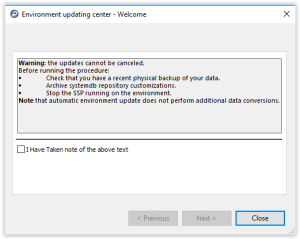
7. Read the information, check the option 'I have taken note of the above text' then click Next. A list of actions is displayed. It is recommended to keep them checked.
8. Click Run to start the update. Duration can vary according to various parameters (source and target versions, infrastructure performances, number of data repositories). It usually lasts about 15 min. A list of reports is displayed (one tab for each action).
9. Review reports and click Close to exit the wizard.
10. Close the environment.
11. Exit the Administration Console.
Procedure (RDBMS storage: Oracle, SQL Server):
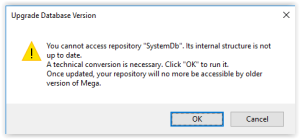
With RDBMS storage, the technical format of system database and data repositories may change when installing update. In this case, a warning is displayed:
You cannot access repository XXX. Its internal structure is not up to date. …
For each HOPEX environment:
1. Start the Administration Console (Administration.exe).
2. Select the environment to be upgraded.
3. R click > Open.
4. If a warning is displayed (You cannot access repository "SystemDb". Its internal structure is not up to date. …):
o Select the environment in the administration tree.
o R click > Perform SQL conversions on the repository
A window 'MEGA RDBMS Technical Conversion' is displayed.
A window 'MEGA RDBMS Technical Conversion' is displayed.
o Click 'OK'.
o Wait until the processing is complete (it takes few minutes) and click 'Close'.
o Select the environment to be upgraded.
o R click > Open.
5. Login with the System identifier.
6. If warnings are displayed (You cannot access repository "XXX". Its internal structure is not up to date…).
o For each data repository (ex: ProductionData)
Select the data repository in the administration tree.
R click > RDBMS Administration > Perform SQL conversions on the repository.
A window 'MEGA RDBMS Technical Conversion' is displayed.
A window 'MEGA RDBMS Technical Conversion' is displayed.
Click 'OK'.
Wait until the processing is complete (it usually takes a few minutes) and click 'Close'.
7. Select the environment
8. R click > Environment automatic update
A wizard 'Environment updating center - Welcome' is displayed
A wizard 'Environment updating center - Welcome' is displayed
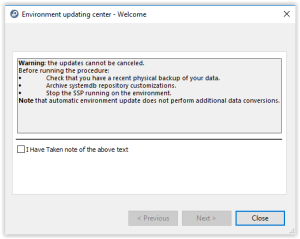
9. Read the information, check the option 'I have taken note of the above text' then click Next. A list of actions is displayed. It is recommended to keep them checked.
10. Click Run to start the update. Duration can vary according to various parameters (source and target versions, infrastructure performances, number of data repositories). It usually lasts about 15 min. A list of reports is displayed (one tab for each action).
11. Review reports and click Close to exit the wizard.
12. Close the environment.
13. Exit the Administration Console.
Check Upgraded Data
Exhaustive check of upgraded data is not possible.
The data conversion success is guaranteed by the correct environment upgrade processing.
If errors are encountered at this step, the migration process must be stopped so that a diagnosis is made.
After complete execution of the migration process, it is recommended to perform a manual check of migrated data.
Example of scenario:
1. Open a workspace.
2. Browse through objects using query tool, navigation tree and diagram.
3. Make small unimportant changes (e.g.: change a character in a comment value, slightly move an object in a diagram...)
4. Exit the workspace with save or dispatch.