UAS Configuration
UAS is configurable by HOPEX Administration through option module.
Configuring authentication options
To configure authentication options, you must access to HOPEX Options in Extended view.
To configure authentication options:
1) Go to HOPEX Administration.
2) Right-click HOPEX and select Options > Modify.
3) Right-click Options and select Extended.
4) Expand Installation > Authentication folders.
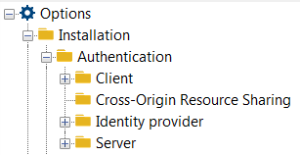
5) Click:
 Client, and configure the client options.
 See Client Option Description.
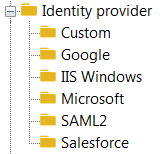
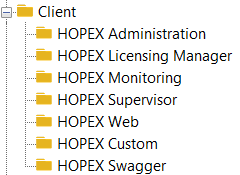 Cross-origin resource sharing, and configure the cross origin resource sharing options.Identity provider, and configure the identity provider options.
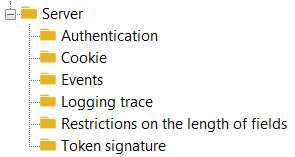
 Server, and configure the server global options and specific options.
 See Server Option Description.
Server Option Description
Server global options
The server global options (HOPEX > Options (Extended view) > Installation > Authentication > Server) are the following:
• Name of the authentication site (available in Standard view)
Displays name of the site used in standard views. Default to HOPEX.
• SSL Activation
Indicates if SSL is required for UAS. You need to activate this option if you want to secure your authentication service and work with some identity providers. Defaults to false.
• Public origin of the site
By default, UAS uses the host, protocol, and port from the HTTP request when creating links. This might not be accurate in reverse proxy or load-balancing situations. You can override the origin used for link generation using this property.
• Type of information storage
UAS allows to use the following data component types:
 InMemory
This storage type allows to store data in memory of your server. It's the simplest storage type. You cannot use it with a cluster deployment and you lose your token when you reboot your server.
Redis (Cluster Compatible)This storage type allows to store data in Redis, a nosql database storage, used for caching. You can use it with a cluster deployment. No data loss.
NCache (Cluster Compatible)This storage type allows to store data in NCache Entreprise 4.6.2 minimum, used for caching. You can use it with a cluster deployment. No data loss.
For legal reason (License redistribution), MEGA cannot provide the assemblies to work with.
You need to put the following assemblies in the UAS binary folder (by default wwwroot/uas/bin):
- Alachisoft.NCache.Web.dll
- Alachisoft.NCache.Runtime.dll
SqlServer (Cluster Compatible)This storage type allows to store data in SQL Server 2008 R2 minimum, used for caching. You can use it with a cluster deployment. No data loss.
You must launch SQL scripts which can be found in:
{HOPEX installation folder}\Utilities\Hopex Cluster Tools\UAS_Scripts.sql
• Parameters of the UAS data component
This parameters allows to complete the data component type. Several data components needs more informations like connectionstring or key.
InMemoryNo need to fill this parameter.
Redis (Cluster Compatible)Fill the Redis connection string into this parameter.
NCache (Cluster Compatible)Fill the NCache name into this parameter.
SqlServer (Cluster Compatible)Fill the SQLServer connection string into this parameter.
Data Source={ServerName}\{Instance};Initial Catalog={DataBaseName};Integrated Security=False;User ID={UserId};Password={UserPassword}
Authentication options
The server authentication options (HOPEX > Options (Extended view) > Installation > Authentication >Server > Authentication) are the following:
• Activation of user name backup
Indicates whether UAS will remember the last username entered on the login page. Defaults to true
• Activation of the local connection
Indicates if UAS will allow users to authenticate with a local account. Disabling this setting will not display the username/password form on the login page. This also will disable the resource owner password flow. Defaults to true.
• Activation of the login hint
Indicates whether the login_hint parameter is used to prepopulate the username field. Defaults to true.
• Limit to the number of consecutive messages
Gets or sets the limit after which old sign in messages (cookies) are purged. Defaults to 3.
• Activation of the capacity to redirect directly to an URL after disconnection
Gets or sets a value indicating whether UAS automatically redirects back to a validated post_logout_redirect_uri passed to the sign out endpoint. Defaults to false.
• Activation of confirmation during connection
Indicates whether UAS will show a confirmation page for sign-in. When a client initiates a sign-in, by default UAS will not ask the user for confirmation but you can activate it. This is a mitigation technique against “logout spam”. Defaults to false.
• The redirection timeout of the automatic post-disconnection
Gets or sets the delay (in seconds) before redirecting to a post_logout_redirect_uri. Defaults to 0.
• Activation of display of the disconnection confirmation page
Indicates whether UAS will show a confirmation page for sign-out. When a client initiates a sign-out, by default UAS will not ask the user for confirmation.
• The invalid sign in redirect URL
Gets or sets the invalid sign in redirect URL. If the user arrives at the login page without a valid sign-in request, then they will be redirected to this URL. The URL can be absolute or relative (starting with “~/”).
Cookie options
The server cookie options (HOPEX > Options > Installation > Authentication > Server > Cookie) are the following:
• Display the “Remember me” checkbox in the login page or not
Indicates whether the “remember me” option is presented to users on the login page. If selected this option will issue a persistent authentication cookie. Defaults to false.
• Sliding cookie Expiration
Indicates if the authentication cookie is sliding, which means it auto renews as the user is active. Defaults to false.
Events options
UAS raises many events at runtime.
The server event options (HOPEX > Options (Extended view) > Installation > Authentication >Server > Events) are the following:
Successful/failed authentication (resource owner flow, pre, partial, local and external)Token issued (identity, access, refresh tokens)Token handle related events (authorization code, refresh token issued/redeemed/refreshed)Permission revokedEndpoint success/failuresExpired/invalid/no signing certificateUnhandled exceptions and internal errorsCSP errors reported by the browserBy default, these events are forwarded to the configured log provider - a custom event service can process or forward them in any way suitable for the environment.
The Events options are the following (all default to false):
• Generation of all events
Activates all the events below
• Generation of success events
Activates refresh token refreshed or authentication success.
• Generation of failure events
Activates authentication failure, authorization code redeems failure events.
• Generation of error events
Activates unhandled exceptions events.
• Generation of information events
Activates token issued or certificate valid events.
Logging trace options
The server logging trace options (HOPEX > Options (Extended view) > Installation > Authentication > Server > Logging trace) are the following:
• Activation of all logging
Activates all the logging traces (http flow, katana Flow, programming web interface, programming web interface in Verbose mode).
• Activation of Http flow logging
When enabled, HTTP requests and responses are logged.
• Activation of Katana Flow Logging
When enabled, the Katana log output is logged (this is often useful to troubleshoot problems with external identity providers).
• Activation of logging of the programming web interface
When enabled, Web API internal diagnostic logging is forwarded to the log provider.
• Activation of logging of the programming web interface in Verbose mode
When enabled, the Web API diagnostics logging is set to verbose.
Token Signature options
The server token signature options (HOPEX > Options (Extended view) > Installation > Authentication > Server > Token Signature) are the following:
• Name of the certificate to be used by the authentication server
X.509 certificate (and corresponding private key) name for signing security tokens.
• Password for the signature certificate of the authentication server
X.509 certificate (and corresponding private key) password for signing security tokens.
Identity Provider Option Description
The identity provider options (HOPEX > Options > Installation > Authentication > Identity provider) are the following:
HOPEX, see HOPEX provider.IIS windows, see IIS Windows providerSAML2, see SAML2 provider.Google, see Google provider.Microsoft, see Microsoft provider.Salesforce, see Salesforce provider.Custom, see Custom provider.HOPEX provider
The HOPEX provider is the HOPEX default provider, which displays a login page with username and password.
To authenticate HOPEX users, use either:
HOPEX User Native Authentication See HOPEX Administration documentation: Authentication in HOPEX section.
• LDAP Authentication
See HOPEX Administration documentation: Authentication in HOPEX section.IIS Windows provider
With the IIS Windows provider HOPEX users are authenticated by Windows Authentication.
To use IIS Windows provider, you must configure the following mandatory options:
Enabled (Default to false)Name displayed for the Windows IIS access provider (Windows by Default)URL of the Windows IIS authentication server.SAML2 provider
SAML 2.0 is an XML based framework, used to describe and exchange security information. It can be used for Single Sign On (SSO), Identity Management and Federation.
To use SAML2 provider, you must set UAS in SSL Mode.
UAS manages only Service Provider (SP) initiated SSO and not Identity Provider(IDP) initiated SSO.
We have implemented two SAML2 Identity Provider and you can find the server configuration example:
SAML2 ADFS Server Configuration sectionOKTA Configuration sectionGoogle provider
Use the Google provider to authenticate HOPEX users with a google account by OAUTH2.
To use Google provider, you must:
set UAS in SSL Mode (Options > Installation > Authentication > server)Have your website accessible by Google serverenter the following fields: Enabled ( Activated or not)Display name (Text the user can display in the user interface, by Default Google)Google Client ID (Identifier of the Google access provider client)Google Secret code (Password of the Google access provider client)Google Scope (Scope of the authenticated client)If you do not know this information, go to the Google console (https://console.developers.google.com) to create your API keys.
Do not forget to activate Google + API at least, otherwise you will not be able to authenticate HOPEX users.
Microsoft provider
Use the Microsoft provider to authenticate HOPEX users with a Microsoft account by OAUTH2.
To use Microsoft provider, you must set UAS in SSL Mode and ensure the address is accessible by Microsoft server and fill the following fields:
Enabled (Activated or not)Display name (Text the user can display in the user interface)Microsoft Client ID (Identifier of the Microsoft access provider client)Microsoft Password (Password of the Microsoft access provider client)Microsoft Scope (Scope of the authenticated client)If you do not know this information, go to the Microsoft website (https://apps.dev.microsoft.com ) to create your API keys.
Salesforce provider
Use the Salesforce provider to authenticate HOPEX users with a Salesforce account by OAUTH2.
To use Salesforce provider, you must set UAS in SSL Mode and ensure the address is accessible by Salesforce server and fill the following fields:
Enabled (Activated or not)Display name (Text the user can display in the user interface)Salesforce Client ID (Identifier of the Salesforce access provider client)Salesforce Password (Password of the Salesforce access provider client)Salesforce Scope (Scope of the authenticated client)If you do not know this information, go to the website: https://help.salesforce.com/articleView?id=connected_app_create.htm for information on how to create a connected app.
To connect Salesforce with UAS through Salesforce Admin, fill:
Application Url field: http(s)://<servername>/HOPEX/DEFAULT.ASPXCallBack Url field: http(s)://<servername>/UAS/signin-salesforceCustom provider
Use the Custom provider to authenticate HOPEX users with your own implementation. You must fill the following fields:
Enabled (Boolean)Activate or not your Custom Provider
Parameters (string)Parameters used by your custom provider.
To create your custom provider, see Install the Hopex Identity Provider template section.
Do not forget to:
set Namespace properties to “Custom” call your C# project: MEGA.UAS.IdentityProvider.CustomCross-Origin Resource Sharing Option Description
(available with options in Extended view only)
Cross-origin Resource Sharing (CORS) is a mechanism that allows some web resources (e.g. fonts) on a web page to be requested from a different domain outside the domain from which the first resource was served. A web page may freely embed cross-origin images, stylesheets, scripts, iframes, and videos. Certain "cross-domain" requests, notably Ajax requests, however are forbidden by default by the same-origin security policy.
With UAS you can add resources from another domain. It can be used if you use several domains in your HOPEX installation. You can have up to 5 different CORS.
Client Option Description
HOPEX Custom (options in Extended view only)
HOPEX allows you to authenticate an external client with UAS and enable UAS SSO Features.
You must fill the following fields:
Enabled (Activated or not)Client ID: HopexCustom (default)Client Name: Hopex Custom Client (default)Client secret: secret (default)Client ScopesClient Flow Client Redirect uriClient Allowed Redirect uriClient Post Logout Redirect uri