Defining desktop characteristics
From the desktop Properties, you can modify default values and configure:
• desktop characteristics
• desktop connection configurations.
Defining desktop characteristics
To define desktop characteristics:
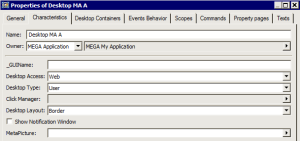
1. From the Properties of the desktop of which you want to specify characteristics (example: "Desktop MA A").
2. In the Characteristics tab, modify or specify the required fields:
• _GUIName: defines desktop name display in the user interface (useful when using Desktop Switcher MEGA Tool).
• Desktop Access Mode: defines if application is accessible via Web front-end or Windows front-end.
Default value: "Web".
• Desktop Type: defines if desktop is user or administrator type. A desktop of administrator type should have more rights and visibility.
Default value: "User".
• Click Manager: by default a (left) click manages standard current. You can configure alternative behavior of the (left) click on your desktop.
• Show Notification Window: select this parameter to activate display of notifications at the bottom of the page when you execute an action.
• MetaPicture : defines desktop icon display in the user interface (useful when using Desktop Switcher MEGA Tool).
Modifying desktop connection configurations
A desktop is linked to a MEGA Application. To define connection modes of the desktop of an application, you must open the Properties of the desktop from the MEGA Application.

You cannot define desktop connection characteristics if you open its Properties from the query tool.
To modify desktop default connection characteristics:
1. In HOPEX, display the MetaStudio navigation window.
2. Expand the MEGA Application folder, then the application concerned (example: "MEGA My Application").
3. Right-click the desktop concerned (example: "Desktop MA A") and select Properties.
4. Select the Characteristics tab.
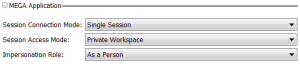
5. In the MEGA Application frame, modify the required fields:
- Session Connexion Mode: enables definition of whether users connected to HOPEX share the same process or not. In "Multi-Session" mode, users share the same process and therefore have the same view of the repository. "Multi-Session" mode is more optimized but block systemdb repository updates.
Default value: "Single Session".
- Session Access Mode: enables definition of mode in which application will open.
"Read Only Workspace": the application opens in read-only mode in the current state. Updates are not allowed.
"Public Workspace": the application opens in the current state and data can be modified. All updates are visible by all users using the application at the same time.
"Private Workspace": the application opens in the current state and data can be modified. All updates made by the user are kept in the private Workspace of the user until he/she decides to dispatch them.
Default value: "Private Workspace".
Note: Workspace is the new wording for transaction.
- Impersonation Role: enables definition of whether a user will connect as a person with his/her rights, or as a person group to which he/she belongs with rights associated with the group.
Default value: "As Person".