Oracle support
Oracle Database Requirements
Encoding
The HOPEX application requires UTF8 encoding.
Select 'Use UNICODE (AL32UTF8). (parameter NLS_CHARACTERSET= AL32UTF8)
Select 'UTF8..' as national character set (parameter NLS_NCHAR_CHARACTERSET=UT8
User privileges
The Oracle user requires the following privileges for the database instance:
GRANT CREATE SESSION TO <MEGAUSR>;
GRANT CREATE TABLE TO <MEGAUSR>;
GRANT CREATE PROCEDURE TO <MEGAUSR>;
GRANT SELECT on V_$PARAMETER to <MEGAUSR>;
Note: here is the only query that is run against the V_$PARAMETER system view
SELECT VALUE FROM V$PARAMETER WHERE UPPER(NAME) = ‘OPEN_CURSORS’
Purpose: calculate the number of distinct queries that can be put in the
Oracle statement cache. To learn more about this mechanism, see
Oracle documentation.
Defining a HOPEX Oracle Connection
An “SQL Connection” menu is available in the HOPEX Administration program at different levels (site, environment, and repository) if the license contains “Repository Storage (Oracle)" products.
To define a HOPEX Oracle connection:
1. Start HOPEX Administration.exe.
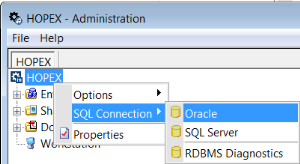
2. Right-click HOPEX (the root of the administration tree) and select SQL Connection > Oracle.
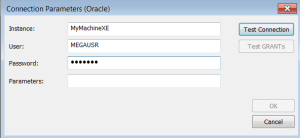
3. Set the connection parameters:
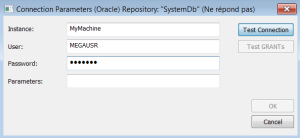
• Instance: <Database Host Id >/<Oracle Service Name>
Database Host ID can be an IP address or the name of a machine network. If the listener service is configured on a port other than the default port, you must suffix the "Database Host ID" with the port number:
- My Server
- 174.12.5.3
- My Server:1523
- 174.12.5.3:1523
Oracle Service Name is db_unique_name.
Example for a standalone installation with Oracle Express with a listener on the 1524 port: My Machine:1524/XE
A complete connection description can be used:
(DESCRIPTION = (ADDRESS = (PROTOCOL = TCP)(HOST = <DB server Id>)(PORT = <listener port number>)) (CONNECT_DATA = (SERVER = DEDICATED) (SERVICE_NAME = <Oracle instance name>)))
The connection description can be used for defining a connection to an Oracle Cluster (RAC).
• User: user enabled to access/update Oracle
• Password: password of the user enabled to access/update Oracle
• Parameters: additional parameters of the connection string.
It is possible to use a specific Tablespace (different from the Oracle user’s default one): tablespace=TablespaceName
4. Click Connection Test to check connection parameters.
Note that clicking Grants Test has no use at this point.
Important note: | If the test returns the “ORA-12705: Cannot access NLS data files or invalid environment specified parameters” error message, this could be due to a previous installation of Oracle. In this case, in the registry editor:
- delete the “HKEY_LOCAL_MACHINE\SOFTWARE\ORACLE\NLS_LANG, or
- rename it to NLS_LANG.OLD” key. |
Creating an Environment
The environment creation mainly consists in creating a SystemDb repository where MetaModel definitions are stored.
Prerequisite:
• Identify the SQL connection parameters (RDBMS instance, user and password).
• Identify the location of the environment folder on the file server.
• Verify that the Oracle database was created with the appropriate encoding (NLS_CHARACTERSET= AL32UTF8).
To create an environment:
1. Start HOPEX Administration.exe.
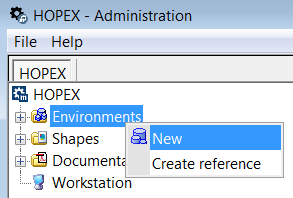
2. Right-click the Environments folder and select New.
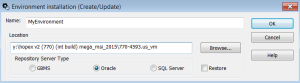
3. Enter the environment Name.
4. (If needed) Change the Location.
5. Select “Oracle” Repository Storage Support.
You can use the parameters specified at the root level for Oracle as they will be shown as default or overload them. In any case, when creating an environment, some more specific tests are carried out regarding the capabilities of the Oracle user to see if they match the prerequisite.
6. Click Test connection to check that the Oracle server is reachable.
This step must be successful for the process to continue.
7. Click Test GRANTs to test different actions (table creations, indexing columns etc.) that are necessary for HOPEX to be able to work.
This test must be successful for the process to continue.
8. Click OK to start the environment creation.
Result:
• A SystemDb repository stored in the selected RDBMS instance is created.
• A folder (HOPEX environment folder) is created on the file server.
This folder contains several files and subfolders (Db, Mega_Usr, SysDb).
Creating a Repository
Prerequisite:
• You can create the repository in the same Oracle User’s Schema as that of the SystemDb, however, it is strongly recommended you isolate each HOPEX repository in a separate Oracle User’s Schema especially for keeping the database administration simpler.
• Verify that the Oracle database was created with the appropriate encoding (NLS_CHARACTERSET= AL32UTF8).
To create a repository:
1. Start HOPEX Administration.exe.
2. Connect to the environment concerned.
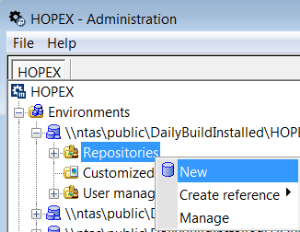
3. Right-click the Repositories folder and select New.
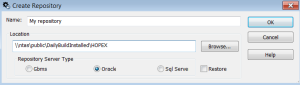
4. Enter the repository Name.
5. Select a Location.
6. Select the “Oracle” Repository Storage Support.
7. Click OK.
8. Change the Oracle User’s Schema and password as recommended above or use the default parameters.
9. Click “Test connection”. The test must be successful for the process to continue.
10. Click “Test GRANTs”. The test must be successful for the process to continue.
11. Click OK to start the repository creation.
Results:
• HOPEX repository tables are created in the Oracle User's Schema.
• A folder is created in the specified location.
HOPEX Private Workspaces Cleanup
This procedure is used to delete the data of the terminated private workspaces of HOPEX Users. It is necessary to clean up these data often in order to reduce database growth and preserve good performances. MEGA recommends running this procedure every week if you have less than 10 users and every night if you have more than 10 users.
Installing the procedure
Warning: You must repeat this procedure for each HOPEX Repository and the SystemDb.
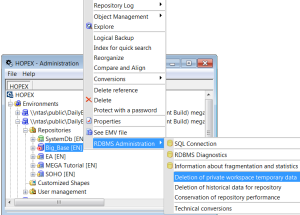
1. Right-click your HOPEX Database and select Deletion of private workspace temporary data.
This launches SP_CLEAN_MEGA_DATABASE and if the procedure:
o does not exist, the application creates it.
o already exists, it is overwritten by this action.
HOPEX Historical Data Cleanup
This procedure is used to delete the historical data of the HOPEX database. Each time a HOPEX object is updated, the previous data is kept in a database. This method ensures a high level of data security even when connection to SGBD is interrupted. It is necessary to often clean up these data in order to reduce database growth and preserve good performances. This clean-up will have no impact on the repository logfile. MEGA recommends running this procedure every week if you have less than 10 users and every night if you have more than 10 users.
Before cleaning Historical Data
Historical data are used in the Repository Snapshot mechanism. See HOPEX Collaboration Manager > Snapshots > Repository Snapshots > Managing Repository Snapshots: Prerequisites section for more details.
If you need to have Repository Snaphots taken, be aware that it will not be possible anymore for the period of time covered by the cleanings. In other words, if you need Repository Snapshots, be sure to take them before the procedure runs.
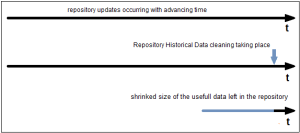
In this first illustrated case, all archived states were deleted, so all the space that these archived states were using is reclaimed physically (an actual delete in the tables was issued for every one of them).
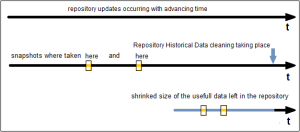
In this second example, all archived states were also deleted except those corresponding to the state of the repository when the two Snapshots were taken.
In this case, the data corresponding to the repository state for the Snapshot(s) is saved and it is thanks to this saving that special features will be available within this repository regarding this data.
Installing the procedure
Warning: You must repeat this procedure for each HOPEX Repository and the SystemDb.
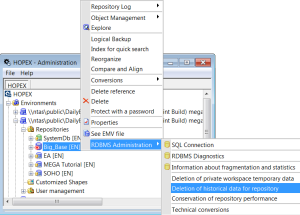
1. Right-click your HOPEX Database and select Deletion of historical data from repository.
This launches SP_CONSOLIDATE_MEGA_DATABASE and if the procedure does not exist, the application creates it. If the procedure already exists, it is overwritten by this action.
Batching Cleanup procedures for Oracle
It is very important to run both of the procedures on a regular basis. So If you do not want to have to remember to click the corresponding menus in the Administration.exe program every time that each of the procedure should be run, you can batch it using Oracle Scheduler.
To batch cleanup procedures for Oracle:
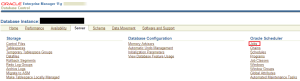
1. In Oracle enterprise Manager, select Server tab.
2. In Oracle Scheduler section, click Jobs.
3. Select Create.
4. Enter a job name.
5. In the Command section click Change Command Type to change for Stored Procedure.
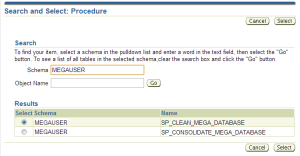
6. Look for the Stored Procedure in the corresponding Schema:
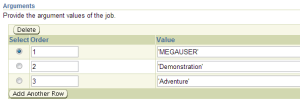
a. Enter the three arguments values for the job:
• 1 : Schema name (ex: ‘MEGAUSER’)
• 2 : HOPEX environment name (ex : ‘Demonstration’)
• 3 : HOPEX repository name (ex : ‘Adventure’)
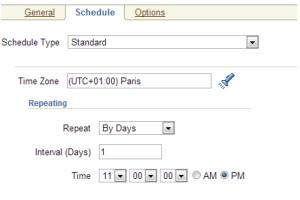
b. Schedule its execution for running every night
7. Repeat the same actions for the other procedure.
8. Schedule the two Stored Procedures for each repository and do not forget the SystemDb.
Maintenance tasks
By default, when the installation of the Oracle is done, an automatic job is set to update the statistics of all schemas :
exec DBMS_STATS.GATHER_DATABASE_STATS
If that job was disabled or modified, and set to refresh a set list of schemas, make sure that it includes the Mega HOPEX schemas.