Accessing User Management and UI Access Management Folders
This section describes how to access management windows for users and profiles.
Accessing User Management and UI Access Management Folders
The
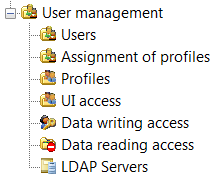
User management folder contains all sub-folders for management of
users, that is:
To access user management and UI access management folders:
1. Connect to HOPEX Administration and select the environment concerned.
2. Expand the User management folder of the environment.
From the User management folder of an environment, you can access management windows:
• of Users
User characteristics are defined in the following tabs:
• Persons
• Logins
• Profile Assignments
• Profiles
• of UI access
Object UI access and general UI access are characteristics defined in tabs:
• Object UIs
• General UIs
• of Data reading access
• of Data writing Access
• of LDAP servers
Opening the User Management window
Characteristics of
users are managed in the
Users window.
To manage users:
1. Connect to HOPEX Administration and select the environment concerned.
2. Expand the User management folder of the environment.
3. Right-click the Users folder and select Manage.
The Users window opens.
The Users window contains tabs:
• Persons, listing all persons in the environment and detailing personal characteristics of each person.
• Person Groups, listing all person groups in the environment and detailing their characteristics.
• Logins, which lists all the users in the environment and details their characteristics.
From the Users management window you can:
• create:
• persons
• user management
• configure characteristics:
• of a person
• of a login
• delete users
• modify:
• user properties
• user passwords
• access user options
Opening the profile management window
To manage profiles:
1. Connect to HOPEX Administration and select the environment concerned.
2. Expand the User management folder of the environment.
3. Right-click the Profiles folder and select Manage.
The Profiles management window opens.
The Profiles window contains the following tabs:
• Profiles, which lists all the profiles in the environment and detailing their characteristics. For each profile, it details the products accessible (optional).
• Business Roles, which lists all the business roles in the environment used by functional administrators to manage them.
From the Profiles management window you can:
• create profiles
• customize an existing profile
• consult profile characteristics
• configure profiles
• perform a mass profile assignment to persons
• delete profiles
Opening the profile assignment window
To open the assignment of profiles window
1. Connect to HOPEX Administration and select the environment concerned.
2. Expand the User management folder of the environment.
3. Right-click the Assignment of profiles folder and select Manage.
The Assignment of profiles window appears.
From the Assignment of profiles management window, you can assign profiles to persons.
 See "Connecting to an Environment", page 7.