Planning Sessions Within a Campaign (Optional)
This step, which is optional, is useful when you are creating several assessment sessions.
You can go directly to:
You can choose to schedule the assessment sessions during the campaign. If so, you must follow these steps:
• deploying the assessment campaign
• defining the assessment campaign scope
• distributing the assessments among the sessions
Deploying Assessment Campaigns
Deploying an assessment campaign consists of indicating in advance the objects to be assessed at the level of each session of the campaign.
To deploy a campaign:
1. In the list of campaigns, click the icon of the campaign you created and select Assessment Campaign (In Preparation) > Deploy.
2. In the deployment window, indicate that you want to deploy the campaign now.

A window asks if you want to deploy the campaign:
• now
• as soon as possible (after dispatch)
• at a later date
3. Click OK.
Assessment nodes are created.

An assessment node comprises:
• an object to assess
• a respondent (or an assignment, which is a respondent associated with a particular business role)
• one or several context objects if necessary (entities and processes)
Defining Assessment Campaign Scope and Respondents
Having deployed the assessment campaign, you must:
• define its scope, that is, select the assessment nodes you want to include in your campaign.
• specify respondents.
Defining assessment campaign scope
To define campaign scope:
1. In the properties of the campaign, select the Effective Scope tab.
The list of assessment nodes from your deployment appears.
2. Select the values you want to remove from the campaign and click the Unvalidate button.
Specifying respondents
To add or modify respondents:

Select the elements that interest you and click
Set Respondent.
Distributing Assessments Within Sessions
When campaign scope has been defined and assessment sessions created, you can plan the campaign.
This consists of distributing assessments during the assessment sessions.
To plan the campaign:
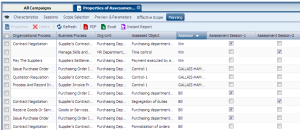
1. In the properties of the assessment campaign, select the Planning tab.
The Planning tab is visible only when assessment sessions have been created.
2. In the right pane, select the assessment sessions in which you want to assess the object in its context.
If you don't see the previously created assessment sessions, click the
Refresh button.