Using Lists
Repository objects are often presented as lists of objects of the same type.
Using columns
In lists, you can configure columns in different ways.
Configuring column display
Each column corresponds to an object characteristic.
To display or hide one or several columns:
1. Move the mouse to the right in a column header.
The cursor takes the form of a hand.
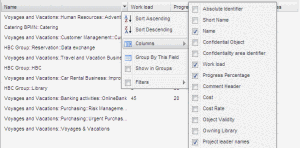
2. Click the arrow to display the drop-down menu, as below:
3. In the drop-down menu, click Columns and select the columns you wish to display.

To hide a column, clear the corresponding check box.
Configuring column order
To modify the order of columns:

Click the column header and drag the column to the required location.
Filtering data
In an objects list you can rapidly filter data of one or several columns.
You can for example filter objects of a list to show only those objects containing a certain character string.
To define a filter:
1. Move the mouse to the right in a column header.
The cursor takes the form of a hand.
2. Click the arrow to display the drop-down menu.
3. Pass the cursor over Filters, then in the box that appears, enter a character string that will enable filtering of objects on the page.
The objects list is restricted, for example to objects beginning with a given string.
The titles of filtered columns appear in bold italic.
To deactivate the filter and redisplay all objects, clear the
Filters check box.
Grouping data by field
In an objects list, you can group data with a common field value.
You can, for example, group all risks that have the same Owner.
To group objects:
1. Move the mouse to the right in the header of the column corresponding to the attribute that interests you.
The cursor takes the form of a hand.
2. Click the arrow to display the drop-down menu.
3. Pass the cursor over Group by this Field.
The objects list appears in a new classification. The Display in Groups box is selected.
To deactivate group presentation, simply clear the
Show in Groups option.
Locking a column
You can position one or several columns of a list on the left of the edit pane. To do this, you must lock the column.
You can, for example, place the local name at the left of the list to be able to keep it displayed even when consulting other fields.
To lock a column:
1. Move the mouse to the right in the header of the column that interests you.
The cursor takes the form of a hand.
2. Click the arrow to display the drop-down menu.
3. Click Freeze Pane.
The column appears on the left and the scrolling cursor is positioned after this column.
To deactivate this presentation, select
Unfreeze Pane.
Exporting mass data
You can select objects of a list and export these objects and their characteristics:
• to Excel

• to Pdf

Modifying mass data
HOPEX can be used to assign the same attribute value to several objects in a list.
To assign the same value to several objects:
1. In a list, select the objects concerned.
2. Position the mouse on the field you want to modify and specify the new value.
The new value of the field is assigned to all selected objects.