Customizing your Dashboard
The Dashboard of your desktop (Web Front-End) is made up of widgets, which use formatters in the form of reports or other HTML pages. They enable fast access to repository information.
Accessing the dashboard
To access your dashboard and widgets:

From the navigation menu, select
Dashboard.
Widget types
A widget can be of type:
• private
A private widget is connected to a user. It is visible in the dashboard of the user who added it.
• public
A public widget is displayed in the dashboard of all the users.
Adding a widget in your dashboard
To add a widget in your dashboard:
1. Click on the navigation window then on Dashboard.
2. In your dashboard, at the bottom left, click Add.
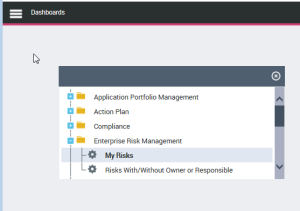
A window displays the available widgets.
3. Select a widget and drag-and-drop it to your dashboard.

Expand folders if necessary.
The widget is displayed in your dashboard.
You can add several widgets to your dashboard.
Managing your widget display
Enlarging/Folding a widget window
If you added a large number of widgets in your dashboard, in the widget title bar click

to reduce the widget.
Click

to expand the widget.
Deleting a private widget
A private widget is connected to a user.
To delete a private widget from your dashboard:
In the widget title bar, click

.
The widget is deleted from your dashboard. It is not displayed at your next connection.