Creating Reports (Web Front-End)
To create a report you must:
• define the report template on which the report is based.
 A report is created from a report template. MEGA
 supplies predefined report templates for each Solution (e.g.: process analyses, application architecture analyses).
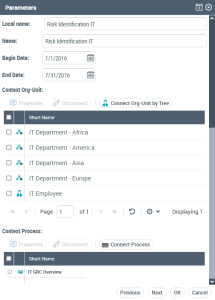
• (if necessary) specify the report parameters.
E.g.: the risk identification report.
This consists of defining report input data.
The parameters define the object groups and their relationship setting in the report. They vary depending on the report template. A parameter value can group several objects.
• (optional) define the report chapters.
Report chapters vary depending on the selected report type.
To create a report:
1. Access the reports.
2. In the Reports navigation pane, click My reports.
3. In the
Navigationedit area, click
New 
.
The report creation window opens.
(EA desktop) In the
Navigation edit area, expand the
Reports folder.
The reports are classified in the associated report template folders.
In the navigation tree, right-click the report template concerned and select New > Report.
4. In the Local Name field, enter the report name.
5. (Optional) In the Owner field, select an owner.
6. Click Next.
(EA desktop) The description of the report template appears.
7. (HOPEX Solution) Select the report template on which your report will be based.
8. Click Next.
9. Specify the report parameters.
This consists in defining report input data, which constitute the analysis scope.
The parameters define the object groups and their relationship setting in the report. They vary depending on the report template. A parameter value can group several objects.
E.g.: with the risk identification report you can presents distribution of risks according to several criteria: by process, by risk type, by entity and by objective.
10. Click Next.
The page to configure the chapters appears.
Report chapters vary depending on the selected report type.
11. (optional) Define the configuration for each report chapter. In the chapter line:
• to hide the chapter: clear Presence.
By default, all chapters are present.
• to display the chapter expanded at report opening: select Automatic Opening.
By default, all the chapters appear folded at report opening.
12. Click OK.
(HOPEX Solution) The report is accessible in the list of your reports.
(EA Desktop) The report is saved in the folder of the associated report template.