Modifying Performance Characteristics
(Web Front-End)
By default, quality of HOPEX images is optimal. If you consider that diagram images take too long to load, you can decide to reduce quality of images.
To configure image quality:

In a diagram, click button

.
The Improved Quality option is selected by default.
You can modify parameters in two ways:
Automatic Mode
Automatic mode measures the time taken to display the image, and depending on the various parameters to be specified, finds a more appropriate display mode.
To define automatic mode parameters:
In the
Quality and Performance Settings window, select the
Advanced Parameters tab.
You can specify:
• Upper threshold of image display in milliseconds
• Lower threshold of image display in milliseconds
• Average on number of queries (for example, last 5 images called)
If the average transfer time exceeds the specified thresholds, HOPEX chooses:
• improved quality, if the average is low (under lower threshold)
• improved performance, if the average is high (above upper threshold)
Pixelization
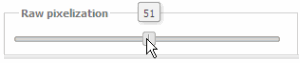
Pixelization consists of requesting a smaller image and displaying this in a larger size.
To adjust pixelization level:
In the
Advanced Parameters tab, move the cursor as shown below: