Creating Diagrams
You can create a diagram:
• directly from an object
• using a wizard, in Windows Front-End
Creating a Diagram from an Object
To create a diagram from a navigation tree object:
1. In the navigation pane, right-click the object from which you wish to create a diagram, for example an org-unit.
2. Pass the mouse over New and select Org-Unit Organizational Chart.
The diagram describing the object is created. It is initialized with the org-unit concerned.

Initialization automatically positions the org-unit in the diagram.
Creating a Diagram Using the Wizard (Windows Front-End)
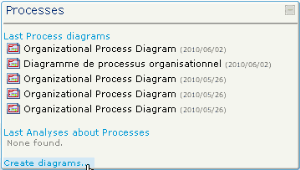
In the edit area of the desktop, the start window allows you to easily create your diagrams with the help of a diagram creation wizard.
To create a diagram using the wizard:
1. Click the category of diagram that interests you, for example "Process".
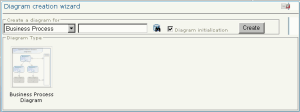
A dialog box proposes different diagram types belonging to this category and to the object type serving as entry point.
2. In the drop-down list, select the object type for which you want to create a diagram, for example "Organizational Process".
3. Enter the name of your diagram in the box on the right of the object type.
4. Select "Flowchart", the only available choice in this example.
Click the Diagram Initialization check box if required.
5. Click New.
Your new diagram opens.