The Quick Search (Windows Front-End)
Search Toolbar
With HOPEX (Windows Front-End), you can perform quick searches by object type.
With the search toolbar at the top of the workspace, you can perform the more common searches.
Queried objects
Searching on a single object type
To perform a search on a single object type:
1. Access the search toolbar.
2. In the first field, select an object type from the drop-down list.
Example: "Org-Unit" to search for all the org-units in the repository
3. Click
Find 
or press [Enter].
Objects are listed in the result window.
Searching on all object types
To perform a search on all object types:
1. Access the search toolbar.
2. In the first field, select "** All **" (the first value in the drop-down list).
3. In the second field, define the search type.
4. Click
Find or press [Enter].
Objects are listed in the result window.
Searching on several object types
To perform a search on a limited number of object types:
1. Access the search toolbar.
2. In the first field, click the right arrow and select Targets Selection.
3. In the Select Query Targets dialog box, select the object types on which you want to run a search, then click Add.

To select several object types at once, use the [Ctrl] key.
4. Click OK.
The object type selection field automatically displays "Selection".
5. In the second field:
• enter the character string to be searched,
• click the arrow to define whether the search is run on the name and/or comment
6. Click
Find or press [Enter].
Objects are listed in the result window. The result is heterogeneous (multitarget).
Query Type
You can perform searches as a function of characteristics common to all object types.
Searching in the object comments
To search for a character string in object comment:
1. Access the search toolbar.
2. In the first field, select the object type.
Example: Project
3. In the second field:
• enter the character string to be searched for.
• click the arrow and select Comment Containing.
4. Click
Find .
Objects are listed in the result window.
Searching in the object names
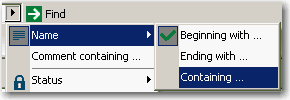
You can search for objects of which the short name:
• begins with,
• ends with,
• or contains a character string.
Searching as a function of object status
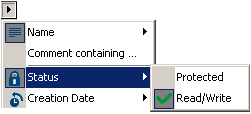
You can perform a search using object status as search criteria: "read/write" (modifiable) or "protected" (read-only).
This criterion can be combined with another. For example, you can search for modifiable projects whose names begin with a given string chain. In this case, both criteria are indicated graphically, which allows you to immediately see on which criteria the search is based.
Searching by date
You can perform a search by Creation Date or Modification Date. This date can be:
• Before
• On
• After
Searching by absolute identifier
When you are in expert metamodel mode (Tools > Options, Repository group, Metamodel Access > Expert), you can perform a search using an absolute identifier.
This command is available in expert metamodel mode only.

 or see "The Advanced Search (Windows Front-End)" to access the advanced search.