Managing Objects (specific to Explorer (RW) desktop)
You can execute actions from objects in the different pages of the Explorer (RW) desktop.
Managing objects from a diagram
Managing an object from the menu bar of its Properties pages
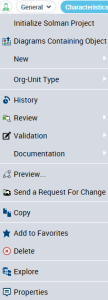
You can execute different actions from the menu bar of the properties of an object. Certain actions are specific to the object, others are generic, for example:
• New to create a new object or a report (MS Word)
• Connect to connect the object to another object
• History to consult the history of actions executed on the object
• Report Discovery to create a report on the object
• Copy to copy the object
• Add to Favorites to add the object to your favorites list
• Delete to delete the object from the repository
• Diagrams Containing Object to access diagrams describing the object
• Properties to display properties of the object in a floating window.
To manage an object from the menu bar of its Properties pages:
1. Access the properties pages of the object.
2. From the properties of the object, click the icon of the object and select the action you want to execute.

Actions that are possible depend on the object. Actions not available on the object are grayed.
Managing an object from a list of a table
You can manage an object from a list. For example a list is displayed in the Properties pages of the object or in a search result.
To manage an object from a list of a table:
1. Display a list.
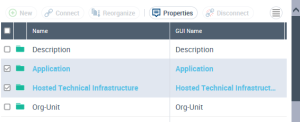
2. In the list, select the check box alongside the object you want tomanage.
You can select several objects.
Select the box in the
Local Name header to select all objects in the list.
3. In the menu bar of the table, click the action you want to perform.
Click

to access hidden actions.