Data views
A data view enables representation of the scope covered by a data model element. A data view is based on the selection of several classes connected in the specific context of the view.
Creating a data view
Creating a data view consists of:
• defining the objects concerned by the view
• defining more precisely parts of these objects to be taken into account in the view. Using the objects contained in the view, you can create embedded components and referenced components.
An embedded component allows you to use all the information that makes up the object of the view. A reference component references only the object of the view.
You can create a view:
• from the Logical data > Data view navigation pane
• in a data area diagram
• directly on an object.
View example
For Order management, you must retrieve the delivery address available for each Client. To take into account only this information, you will create a view of the Client class that uses only the delivery address.
Creating a data view directly on an object
To create a data view on an object:
1. Right-click the object concerned and select New > Data view.
In our example, right-click the client class.
The data view creation wizard opens.
2. Enter the name of the view.
3. If appropriate, enter the name of the owner.
4. Click OK.
The editor view appears.
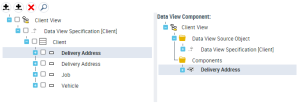
To the left, the class concerned by the view (Client) appears.
To the right, you will define the components of the view, in other words, the information to be displayed (here the delivery address of the Client).
5. To the left of the editor, select the element to take into account.
In our example select "Delivery address".
6. Click Add an embedded component or Add a reference component as needed.

Unlike the reference component, the embedded component encompasses the entire perimeter of the selected object.
The component appears to the right, in the definition of the view.