Accessing Workspace Management (Web Front-End)
To access the list of current workspaces in an environment:
1. Connect to the MEGA Administration desktop (Web Front-End).
2. In the Administration tab, click the Repository Management pane.
3. Click the Workspace Management sub-folder.
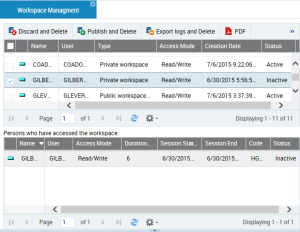
The management page for workspaces currently in progress in the environment appears.
The management page for workspaces currently in progress details the following for each workspace:

To sort workspaces according to a column, click the header of the corresponding column.

You can also arrange columns in the order you want. To do this, click the header of the column to be moved and, holding down the mouse button, move it to the required position.
• the User of the workspace
• the Type of workspace:
• "Private Workspace":
The user can modify data. His/her updates are kept in his/her private workspace until dispatched.
• "Public Workspace":
The user can modify data. His/her updates are immediately visible to all other users.
• the Access Mode of the workspace, for example:
• "Read/Write" when a session is open.
• "Read-only" when the user is in consultation only.
• no value, if the private workspace is passive (the user has saved his/her session but is not currently connected to MEGA).
• no value if the user is in offline mode
• its Creation date and time
• the Status of the workspace
• enabled
• disabled
The Persons who have accessed the workspace frame details:
• for a collaborative workspace, all the users who have accessed the workspace:
• the User who owns the workspace
• its Duration in days
• the start date and time of the last session
• the end date and time of the last session
• the user Code
• the user Status
• for a private workspace:
• the User of the workspace
• the Access Mode of the workspace, for example:
• its Duration in days
• the start date and time of the last session
• the end date and time of the last session
• the user Status