Viewing User Process Error Trace Files
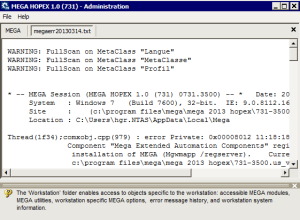
Trace files of errors in user processes contain information on operations executed and possible anomalies.
If there is a problem with a repository, this file will help the MEGA Research Center to analyze it.
Each
trace file has the following characteristics:
• format: *.txt
• name: megaerrAAAAmmJJ
where YYYYmmDD represent the year, month and day when the file was generated
Example: file Megaerr20110204.txt was generated on 04 February 2014).
• information on errors:
• date and time of the error
• action that produced the error
• associated error message
You can open the trace file from:
• MEGA Administration
• the Mega Server Supervisor tool
• MEGA
Opening the trace file from MEGA Administration
To open the trace file from MEGA Administration:
1. Start MEGA Administration.
2. In the navigation tree, right-click Workstation and select Trace File > Open.
The file is opened in the main pane of the window.
Opening the trace file from the Mega Server Supervisor tool
To open the trace file from the Mega Server Supervisor tool:
2. In your workstation system tray, right-click
MEGA Server Supervisor 
and select
Mega Logs > Open Daily Logs.
Opening the trace file from MEGA
To open the trace file from MEGA:
1. In the MEGA menu bar, select Help > About MEGA.
The About MEGA dialog box appears.
2. In the dialog box that opens, click System Information.
3. In the System Information dialog box, select Error Log > Edit.