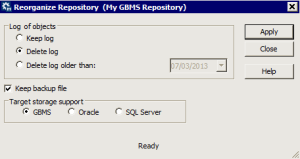
Reorganizing a repository
You can reorganize a repository:
• to optimize storage space and GBMS repositories performance.

This space increases rapidly when users begin accessing and updating the repository.
• when you want to change storage type, for example: from GBMS repository to Oracle repository.
The repository reorganization process is automated. It consists of:
1. physical backup of repository files (GBMS only).
2. logical backup of the repository, to obtain the
command file which contains creation orders of repository objects and their links.
3. repository initialization.
4. repository restore by import of the command file in an empty repository.
Recommendations concerning GBMS repositories
Repository reorganization frequency depends on activity (dispatch frequency, number of users, functionalities used, etc.)
MEGA recommends that you:
• reorganize your repository:
• twice a month for configurations of more than 100 users.
• once every two months for smaller configurations.
• not forgetting to also reorganize the system repository SystemDb.
Reorganizing a repository

To improve reorganization times and performance of
MEGA, remember to delete old log elements before repository reorganization.
To reorganize a repository:
1. Connect to MEGA Administration and select the repository concerned.
2. Right-click the repository concerned and select Reorganize.
3. (Optional) In the Log of objects frame, you can select the actions to be executed on the log at reorganization.
4. (Optional) If you do not want to keep the repository log, clear Keep log.
The log is generated in the
work folder WORK of the repository, in format Bkp_<YYYY-MM-dd_HH.mm.ss>_<repository name>.mgr
By default, the target server type is the same as the repository server type.
5. Click Apply.
When the repository has been reorganized, a reorganization completed message is displayed.