Modifying a Report Template (MS Word)
Report template (MS Word) modifications can apply to page format, headers and footers and accompanying text entered in MS Word: in this case they concern only MS Word, and are made as in normal use of this software.
To display the name of a project, that is to say the name which should be instanced in each report (MS Word), you need to insert a "report template (MS Word) element".
Entering text in your MS Word report template
To add a title:
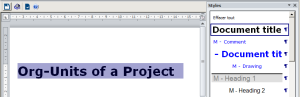
1. In the report template, enter the title.
Example: “Org-Units of a Project”
2. Select the title (for example: "org-Units of a Project") and in the MS Word Styles apply “Document title” style.
Inserting Report Template (MS Word) Elements
Report template (MS Word) elements query the repository; they consist of:
• a query (see the MEGA Common Features guide).
Report template (MS Word) elements can be inserted in report templates (MS Word): they are transformed into report (MS Word) elements when creating a report (MS Word).
To insert report template (MS Word) elements in a report template (MS Word):
1. Position the cursor where you want to insert the "report template (MS Word) element.
2. In the edit toolbar, click
Insert a Report template (MS Word) Element 
.
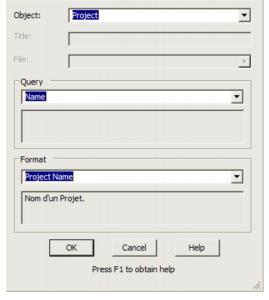
The Insertion of Report Template (MS Word) Element dialog box opens.
3. In the Object field, select the type object to which the report template (MS Word) element relates.
Example: “Project”.
4. In the Query field, select the query criterion for of the desired project.
Example: "Name" which will search for projects by name.
5. In the Format field, select the format of the result with a description.
Example: The "Project Name" descriptor enables display of the project name.
6. Click OK.
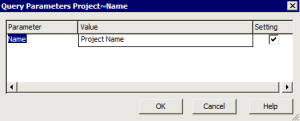
An intermediate dialog box appears where input is required in our example:
The software will request a value for this setting when it creates a report (MS Word) based on this template.
7. In the Value filed, enter the value.
Example: “Project Name”.

If you clear the
Setting check box, the value you enter will be used as the setting value when the report (MS Word) is created.
8. Click OK.
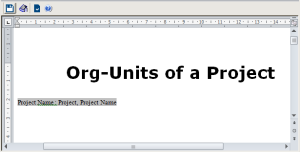
The first report template (MS Word) element has been inserted in the document template.
9. In the edit toolbar, click
Save 
.
You can now create reports (MS Word) from your new report template (MS Word). T
Deleting a Report Template (MS Word) Element
To delete of a report template (MS Word) element:

Delete the corresponding line.
Replacing a Report Template (MS Word) Element
You can replace a report template (MS Word) element by a new element.

The standard report templates provided are protected. If you want to modify them, you must first duplicate them. The same applies for descriptors.
To delete a report template (MS Word) element and insert the new element:
1. Open the report template (MS Word).
2. Delete the report template (MS Word) element by deleting its code.
3. From the document edit toolbar, click
to insert a new report template (MS Word) element.