Organizing your Desktop (Windows Front-End)
To organize your desktop, you can:
• add or close a window
• define position of a window
• create folders in navigation trees
Adding Windows
To add a window in your desktop (Windows Front-End):
1. In the MEGA menu bar, select:
• View > Navigation Windows
• View > Edit Windows
2. Select the window you want to add.
Positioning Windows
You can organize your desktop as you like. You can show/hide/move navigation and edit windows.
You can:
• float, dock, fix, auto hide or enlarge navigation windows.
• merge several windows and access these via tabs.
• integrate a navigation window in the main edit window.

If you wish to modify the desktop default arrangement, see frequently asked questions, section
"The Desktop"".
Floating a window
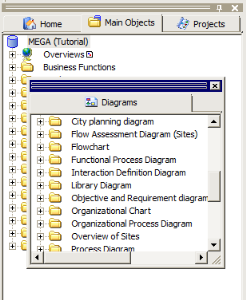
You can detach navigation windows (for example those for Home and Main Objects) from the navigation area and "float" them in the desktop.
To float a window:
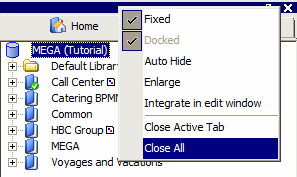
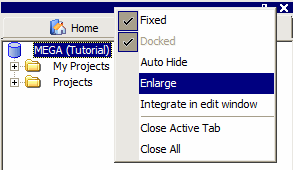
1. Right-click in the navigation area title bar and clear Fixed.
2. Click a tab and drag it to where you wish.
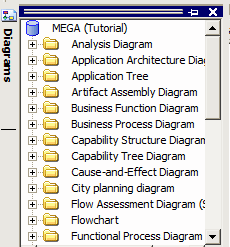
Eg.: the Diagram tab.
Position the window outside "sensitive areas" (when the mouse pointer passes close to sensitive areas, the window will dock in the desktop, which is a situation you do not want here).
To float a window, you can also clear the
Docked option from the window title bar pop-up menu.
Permanently floating a window
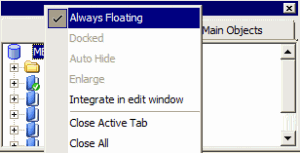
You may decide that a window should always float and never be docked. To do this:

In the pop-up menu of the floating window title bar, select
Always Floating.
Docking a window
You can dock windows in the desktop. A window is said to be Docked, as distinct from floating, when it is integrated in the desktop.
To dock a window:
1. Select the floating window and move it in the desktop.
When the mouse pointer passes close to a sensitive area, a colored frame appears indicating future positioning of the window when docked.
2. When you have found a satisfactory position, release the mouse button.
The window is docked.
To dock a window, you can also select
Docked in the window title bar pop-up menu.
Fixing a window
You can fix a docked window so that it always remains in the same position in the desktop.
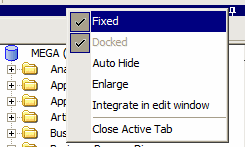
To fix a window:
In the pop-up menu of the floating window title bar, select
Fixed.
If the
Fixed command is cleared, the window can become floating, in other words not fixed to the edge of another window.
Automatically hiding a window
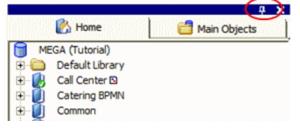
A pushpin in window title bars facilitates switching to "Auto Hide" mode. This function allows you to increase viewable display and editing space by auto hiding navigation and edit windows.
To automatically hide a window:
In the title bar, click the pushpin icon

.
The window is automatically hidden and is positioned at the edge of the application.
To access an auto-hidden window:
Click the tab of the hidden window.
The window appears.
To hide a window again:
Click its icon.
Clicking outside the active window also has the effect of hiding it.
To deactivate auto hide:
Click on the pushpin

in the title bar.
The window reappears and can be used.
Closing a tab
To close a tab:
1. Click the tab you wish to close to activate it.
2. Either:
• Right-click the tab and select Close, or
• Click the cross

in the title bar.
To simultaneously close all tabs of the navigation area:
1. Right-click in the navigation title bar.
2. Select Close All.
Integrating a navigation tab in the edit window
You can decide to integrate navigation window tabs in the edit window.
To integrate a navigation tab in the edit window, either:
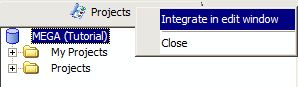
Right-click the tab you want to move and select
Integrate in edit window.
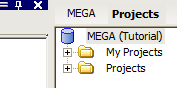
The tab is moved into the edit window.
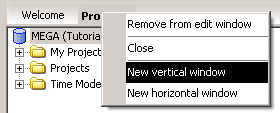
To reintegrate the tab in the navigation area, right-click the tab and select
Remove from edit window.
Double-click the tab you want to move.
To reintegrate the tab in the navigation area, double-click the tab.
Creating several edit windows
When you have moved a navigation window into the edit window, you can organize this desktop as you wish:
• create new windows
• move tabs in edit windows
• return tabs to the navigation area.
To create a new edit window:
1. In the edit window, right-click the desired tab and select:
• New vertical window or
• New horizontal window.
The new window appears.
When you have created several edit windows, you can move a tab from one window to another by selecting
Move in previous window (or
next window).
Enlarging a navigation window
You can enlarge a navigation window so that it occupies the entire desktop.
To enlarge a navigation window
1. Right-click in the title bar.
2. Select Fixed.
3. Select Enlarge.
The window now occupies the entire desktop.