Enterprise Architecture Desktop Navigation Windows
The navigation windows described below are available in:
• MEGA Windows Front-End.
• the Web Front-End Enterprise Architecture desktop.

The navigation windows available in the Solutions are described in the corresponding guides.
|
Home
|
Contains libraries used to subdivide content of a MEGA repository. They are not simply a means of classifying repository objects: they are real partitions of the repository.
|
|
Main objects
|
Contains repository main objects according to the products you have available.
|
|
Projects
|
Contains repository projects. A project consists of a set of tasks entrusted to a team, which transforms a system or part of a system with the aim of achieving a given objective.
|
|
Dictionary
|
Contains terms and concepts of objects in your enterprise, organized by subject area.
|
|
Diagrams
|
Contains repository diagrams classified by type.
|
|
Keywords
|
Contains keywords defined in the repository with, for each keyword, its attached objects
|
|
Documentation
|
Contains reports, documents, books and gadgets.
|
|
Favorites
|
Contains your favorite objects for easy access to frequently consulted data.
|
|
My notifications
|
Contains notifications received in the framework of collaborative work.
|
Other navigation windows are available depending on the products available. For more details, see the corresponding PDF guide.
Home
The Home navigation window contains libraries. It is displayed by default on starting MEGA.
Libraries allow you to:
• organize repository content by partitioning.
• create objects that will be stored in these libraries.
• limit objects proposed at creation depending on the context of creation.
Different libraries can contain objects with the same name.
To create:
Main objects
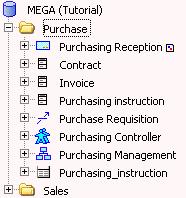
The Objects navigation window presents folders that group main objects by type. It is possible to expand these folders and the objects they contain to view their contents.
Unlike the MEGA explorer, this menu tree does not present basic objects such as the attributes or operations of a class.
The tree presents several levels:
• The overview, which is the entry point to the repository, allowing access to the modeling elements used throughout the organization.
From this overview, you can create general diagrams related to the entire enterprise. This allows you to create diagrams without connecting them to a particular object type.
• The repository with which you are working.
• The folder representing the main object types of the repository (for example, databases and packages, organizational processes and org-units).
• The list of objects corresponding to an object type.
Under the folders, you will find only root or first level objects (for example, organizational processes, but not sub-organizational processes).
You can navigate around an object to display its components.

Objects are classified in alphabetical order and not in their order of connection with the parent object. This is so they can be found more easily when the list is long.
Creating objects
To create an object:
1. Right-click the folder of the object type concerned and select New.
2. Select the object type you want to create.
Object pop-up menu
You can open or consult the properties of an object directly with a right click from the navigation window.
Icons indicating object status
Icons can be observed alongside certain objects in the navigation window. These icons give indications about the object.
Projects
The Projects navigation window contains two folders:
• The "Projects" folder contains all projects present in the repository.
The pop-up menu of this folder enables the creation of new projects.
• The "My Projects" folder is specific to each user.
When both folders are expanded, the projects added to "My Projects" also appear in the "Projects" folder.
Project pop-up menu
The pop-up menu of each project gives access to several functions, in particular those for connecting objects or creating projects.
Displaying the content of a project
To access objects of a project, expand the project.
To familiarize yourself with the content of the project:
1. Right-click the project and select Properties.
2. In its properties dialog box, select the Content tab.
The Deliverable column allows you to specify if the objects of the project are deliverables produced by the project.
Consulting participants in a project
To indicate the persons that participate in a given project:
1. In the properties dialog box, select the Participants tab.
2. In the toolbar, select the button corresponding to the type of participant you want to intervene:
• Person
• Person (system)
• Org Unit
3. Click
Connect 
.
4. Using the search tool, select the participants that interest you.
5. Click OK.
Utilities
The Utilities navigation window presents the tools that allow you to access and use repository contents.
Availability of utilities can vary depending on products installed.
The pop-up menus present the commands available as a function of the type of element.
Documentation
The Documentation navigation window enables access to the following object types:
• Web sites: generator of HTML pages
• Reports (MS Word)
• tool for consulting and updating links between objects
• External References
• Reports
• Books
Keywords
The Keywords navigation window presents the keywords defined in the repository and for each keyword, the objects that are attached to it. This way you can display which objects are attached to which keyword.
Keywords help categorize objects.
Afficher un exemple
To connect objects to a keyword:
1. In the keyword properties, select the Keywords tab.
2. Select the folder corresponding to the required object and click Connect.
To view keywords connected to a particular object:
1. In the object properties page, select the General tab, then select the Keywords tab.
Diagrams
The Diagrams navigation window presents the repository diagrams classified by type.
Afficher un exemple
To open a diagram:

Double-click the diagram icon or name.
The diagram opens in the edit area.
Diagrams open in the edit area of the desktop.
To detach the diagram and open it in a separate window:
Double-click the tab of the diagram.
To create a diagram on the desktop,
In the detached diagram menu bar, select
View and select
Reopen in Main Space.
This command is only visible when the option
Always open diagrams in new window is cleared (
Tools > Options > Workspace).
Methodology
The Methodology navigation window presents concepts used in formalizing your project approach. It can be used in the context of MOKA methodology.
To show or hide navigation windows:
In the desktop, select
Tools > Options >
MOKA Modeling and Methods Regulations.
Method
Each project type is described by a method. It offers a way of carrying out the project type. It is described by incoming and outgoing deliverables as well as by phases that detail the progress of the method. Each phase is itself described by a method.
Example: Describing business processes, modeling applications
Project context
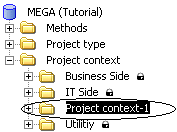
The Project Context folder also allows you to group methods according to project contexts.
To group methods by project context:
1. Right-click the Project Context folder and select New > Project Context.
2. Name your project context and click OK.
3. A folder with the new project context name is created in the tree.
You can drag-and-drop:
• methods
• project types
• deliverables
Project type
A project type is a type of project carried out within the enterprise.
Examples: Business process description, application assets description, application development, application integration
Frameworks

A framework is a set of tools enabling definition of work methods at project implementation, or at design/modeling or repository data.