Accessing MEGA
Accessing MEGA (Windows Front-End)
You can start MEGA from your workstation:
• directly with MEGA installed on your machine.
• via a server or another machine to which you can connect.
To simplify your first steps with MEGA, this guide is based on examples available in the "MEGA (Tutorial)" repository of the "Demonstration" environment. The "Mister Guide" user has been installed to guide you in your discovery of MEGA.
To start MEGA:
1. Double-click the
MEGA icon

.
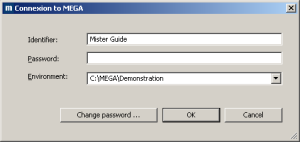
The connection dialog box appears.
2. In the Environment field, select your work environment.

If you can access only one environment, this is automatically taken into account and the environment selection field does not appear.
For more details on environments and users, see chapters
Managing Environments and
Managing Users in the
MEGA Administration guide.
3. In the Identifier field, enter your identifier.
If you have selected the "Demonstration" environment, you can work with the "Mister Guide" identifier.
4. In the Password field, enter your password if necessary.
5. Click OK.
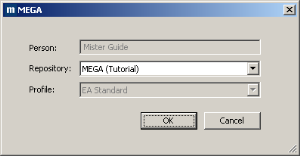
When you have been authenticated, the workspace selection dialog box appears.
The Person field is defined automatically; it indicates the name of the person associated with the identifier defined in the connection dialog box.
6. In the Repository field, select your work repository.
The drop-down menu

opens the list of repositories available in the environment. Before you begin modeling the data of your company, it is recommended that you create a new repository in a new environment.
If you can access only one repository, this is automatically taken into account and the repository selection field is grayed.
7. In the Profile or Business Role field, click the arrow and select the profile or business role with which you want to work.
If you have only one profile or business role, this is automatically taken into account.
8. Click OK.
Your desktop appears.