1. In a diagram, click button  .
.
.. The Drawing Objects check box allows you to show or hide purely graphical elements representing neither object nor link.When an object in a diagram is described by one or more other diagrams, a status indicator appears below the object shape. This status indicator takes the form of an icon corresponding to the diagram type. It reminds you that you can zoom on the object. The Status Indicators check box allows you to display this indicator or not. For more details, see "Object status indicators".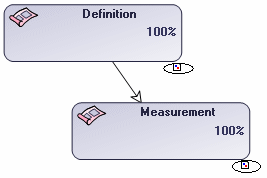
 | the object is owned by the parent object |
 | the object is not owned by the parent object |
 | the object is described by a diagram |
 | the object is described by a document |
 | the object cannot be modified (not authorized and/or locked) |
 | the object can be modified (authorized and not locked) |
 | the object has variants |
 | the object is a variant |
In MEGA Windows Front-End, it is possible to configure display of these icons. To do this, in the desktop select Tools > Options, then click the Status Indicators icon. In the dialog box that opens, select or clear the desired options.