Managing GraphQL Schemas
You can use GraphQL schemas provided in Hopex. You may also want to create your own ones.
Accessing the GraphQL schemas
To access the GraphQL schema:
1. Log in to Hopex Studio.
2. Click the GraphQL navigation menu.
The list of GraphQL schemas displays.
Creating a GraphQl schema
To create a GraphQL schema:
1. Access the GraphQL schemas.
2. Click New  .
.
.3. Configure the schema:
• in Name field, enter the schema name in Hopex
• in Metamodel field, select the metamodel to which the GraphQL schema applies
• in Profile field, select the profile concerned
• in Schema Name: enter the schema name
Generating a GraphQL schema
To generate a GraphQL schema:
1. Access the GraphQL schemas.
2. Select the GraphQL schema concerned.
 You can select several GraphQL schemas.
 Use the search filtering tool to find the GraphQL schema.
3. In the list bar, click the Generate  .
.
.The GraphQL schema Generation wizard appears.
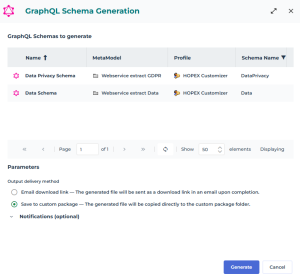
4. In the Parameters section, select your output delivery method:
• Save to custom package (default): the generated file is directly copied to the custom package folder
 The Hopex Application Server Customization module must be installed beforehand.
 • Email download link: the generated file is sent as a download link
Useful if the Hopex Application Server Customization module is not installed yet, since you can upload the file later. See Customizing GraphQL Schema Files.5. (Optional) To send a notification email to other persons:
• in Names of additional persons to notify, enter the name of Hopex persons
• in Other email addresses to notify, enter other email addresses
6. Click Generate.
7. Dispatch your work (Main menu > Dispatch).
A notification email is sent to you (and to any other person/address defined step 5) when the generation is complete.Upon completion, with:
• Save to custom package: the file is deployed in the dedicated folder of the Custom package and also accessible in the Custom Packaging > Content Manager > GraphQL page
From the Content Manager > GraphQL page you can also upload your GraphQL Schema files, see Customizing GraphQL Schema Files. 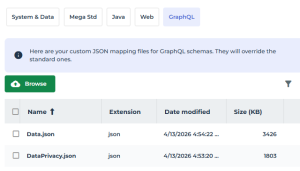
• Email download link: the generated file is sent to you as a download link by email.