SaaS / On-Premise Common Features
Configuring the SMTP Server
SMTP (Simple Mail Transfer Protocol) server configuration enables email sending.
Saas offer
If your Hopex server is hosted by Bizzdesign as part of the SaaS offering, Bizzdesign Cloud Services manages the SMTP server configuration. SaaS customers do not have access to the SMTP configuration (in the HAS console, the SMTP Configuration menu is not available).
The default SMTP configuration is set as follows:
• Single sender (generic sender): selected
This option forces a single FROM address for all Hopex generated notifications.
• Default address of author via SMTP (FROM) and Default address of sender via SMTP (SENDER):
noreply-[customername]@hopex.cloud
The default email configuration is required for initial onboarding and user account creation.
If you do not want Bizzdesign Cloud Services to manage your SMTP configuration, you can request access to configure and manage your own corporate mail service.
Any changes to the SMTP configuration must be requested through a support case. Proceed as follows:
1. Submit your request to Bizzdesign support.
2. Once the request has been processed, the default configuration is removed and you are granted access to the SMTP configuration interface.
In the HAS console, the SMTP Configuration menu is available.
3. Configure your SMTP server.
|
SMTP Parameter
|
Description
|
|---|---|
|
Single sender (generic sender)
|
To be selected to secure email reception. Can be asked upon request from the Bizzdesign support team.
When selected, enter the same address in both Default address of author via SMTP (FROM) and Default address of sender via SMTP (SENDER) fields
|
|
Default address of author via SMTP (FROM)
|
When an automated email (like a password setup email) needs to be sent, and the system cannot find a specific sender email address (such as the administrator's email), it uses this default email address instead.
|
|
Default address of sender via SMTP (SENDER)
|
Used for security/authentication purposes, in addition to the known address or to the default address (Default address of author via SMTP (FROM)) depending on the case.
Emails are sent as SENDER@domain.com on behalf of [User@domain.com].
Ensures deliverability and compliance with corporate policies.
|
|
SMTP Server
|
The domain that handles outgoing emails.
Must match the domain used in the FROM and SENDER addresses.
|
|
SMTP Port and security
|
By default: 25
For secure communication use either:
• (SSL): SMTP port: 465 and select Activate SMTP SSL Support
• (TLS): SMTP port: 587 and select Activate SMTP TLS Support
|
|
Activate SMTP Authentication Support (Optional)
|
Select if your SMTP server requires credentials and enter corresponding username and password
|
|
Activate SMTP Proxy (Optional)
|
Select if a proxy is required and provide the proxy address and port
|
To configure the SMTP server:
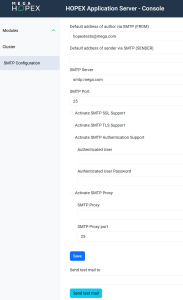
1. Access the HAS Console.

2. In the navigation menus, select SMTP Configuration.
3. Enter the SMTP parameters.
4. Click Save to apply the configuration.
5. (Optional) Check the configuration, see Testing the SMTP settings.
Testing the SMTP settings
To test the SMTP settings:
1. Access the HAS Console.
2. In the navigation menus, select SMTP Configuration.
3. In the Send test mail to field enter a test email address.
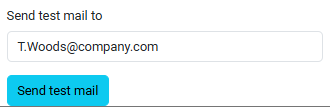
4. Click Send test mail.