Viewing User Process Error Trace Files
Trace files of errors in user processes contain information on operations executed and possible anomalies.
If there is a problem with a repository, this file will help the Bizzdesign Research Center to analyze it.
Each trace file has the following characteristics:
• format: *.txt
• name: megaerrYYYYmmDD
where YYYYmmDD represent the year, month and day when the file was generated
Example: file Megaerr20110204.txt was generated on 04 February 2014).
• information on errors:
• date and time of the error
• action that produced the error
• associated error message
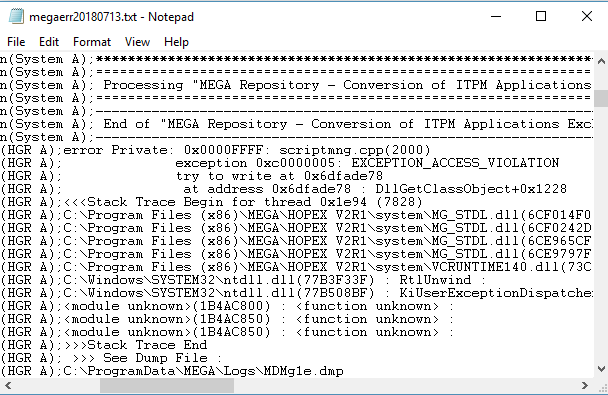
You can open the trace file from:
• Hopex Administration
• Hopex Server Supervisor
• Hopex
Opening the trace file from Hopex Administration
To open the trace file from Hopex Administration:
1. Connect to Hopex Administration.
2. In the menu bar, select Help > Technical Support > Error Logfile > Edit.
Opening the trace file from the Hopex Server Supervisor tool
To open the trace file from the Hopex Server Supervisor tool:
1. (Prerequisite) The Hopex Server Supervisor tool is started, see Starting Hopex Server Supervisor.
2. In your workstation system tray, right-click Hopex Server Supervisor  and select Mega Logs > Open Daily Logs.
and select Mega Logs > Open Daily Logs.Opening the trace file from Hopex
To open the trace file from Hopex:
1. Connect to Hopex.
2. In the Hopex menu bar, select Help > Technical Support > Error Logfile > Edit.
 Alternative: in the Hopex menu bar, select Help > About Hopex, then in System Information, select Error Log > Edit.