Configuring Website Generation (On-Prem)
Configuring General Settings
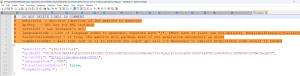
To set up the display of your static website, you have to edit the website configuration file.
To edit the configuration file:
1. Open the Config.json file in edition mode.

The default path is: C:\ProgramData\MEGA\Hopex Application Server\<name of the HAS instance>\.shadowFiles\Macros\website.static.macros\<version number>\daily_batch\Exe\config.json

Make sure you use the "Config.json" file which is inside the "Exe" folder.
2. Enter/edit the following information if needed:
• "websiteID": enter the Absolute Identifier of the website to generate.
• "apiKey": enter the API key.
• "serverUrl": enter the HAS instance's URL.
• (Optional) "languagesCode": the website is generated in English by default. Edit or add code language(s), separated by ";" to generate the website in the language(s) of your choice.
For example, the following code languages can be entered: FR (French); ES (Spanish); DE (German); IT (Italian); PT (Portuguese).
• (Optional) "forceContinuOnError": the "false" value is set by default. Enter "true" to package the website even if the generation encountered an error.
• (Optional) "temRefreshApi": "300s" is set by default. Reduce the wait time to refresh the API call if needed.
3. Save and close the file.
API Key
An API key must be created. It will authorize the user to execute the website generation process.
Website Absolute Identifier
The Website Absolute Identifier is essential for specifying which static website is displayed through the Enterprise Portal.
To retrieve the Website Absolute Identifier:
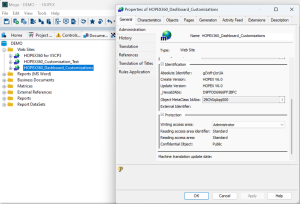
1. Open the HOPEX Windows Front-End
2. In the Documentation tab, expand Web Sites.

If you cannot see the Documentation tab, click
View >
Navigation Windows and select Documentation.
3. Right click the adequate website to open its Properties.
4. In the General tab > Administration tab, copy the Absolute Identifier.
Configuring Optional Languages
The following applies to on-premises users.
By default, the website is set to English.
If you want to generate a website in another language, further configuration is required:
• you have to modify the Enterprise Portal homepage:
• for unilingual website generation outside of English
• for multilingual website generation
If needed, check that the adequate language(s) in
HOPEX are activated via
Tools > Options > Installation > Languages.
Editing the Enterprise Portal homepage for a unilingual website
By default, the Enterprise Portal homepage opens in English.
To set up the Enterprise Portal homepage in another language:
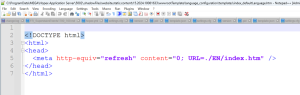
1. Access the Enterprise Portal homepage file in edition mode.
The default path is: C:\ProgramData\MEGA\Hopex Application Server\<name of the HAS instance>\.shadowFiles\website.static.content\<date of the last generation>\wwwrootTemplate\index.htm
2. Edit the language code.
For example, instead of EN (English), enter another language code such as FR (French); ES (Spanish); DE (German); IT (Italian) or PT (Portuguese).
3. Save the file.
Editing the Enterprise Portal homepage for a multilingual website
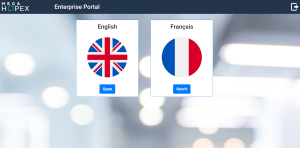
For multilingual websites, it is necessary to edit the Enterprise Portal homepage so as to enable the end-user to select the language of their choice via language tiles.
A multi-language template is provided to help you with this task. In this template, language tiles are available by default in English and French, as shown in the image below.
Setting up the Enterprise Portal homepage in several languages
To set up the Enteprise Portal homepage in several languages:
1. Open the "index_severalLanguages.htm" template in edition mode.
The default path is: C:\ProgramData\MEGA\Hopex Application Server\<name of the HAS instance>\.shadowFiles\website.static.content\<date of the last generation>\wwwrootTemplate\language_configuration\templates\index_severalLanguages.htm
2. (Optional) Add/Edit language tiles.
This action is not necessary of you generate a bilingual website in English and French.
3. Copy the content into the "index_htm" Enterprise Portal homepage file.
The default path is: C:\ProgramData\MEGA\Hopex Application Server\<name of the HAS instance>\.shadowFiles\website.static.content\<date of the last generation>\wwwrootTemplate\index.htm
4. Save the file.
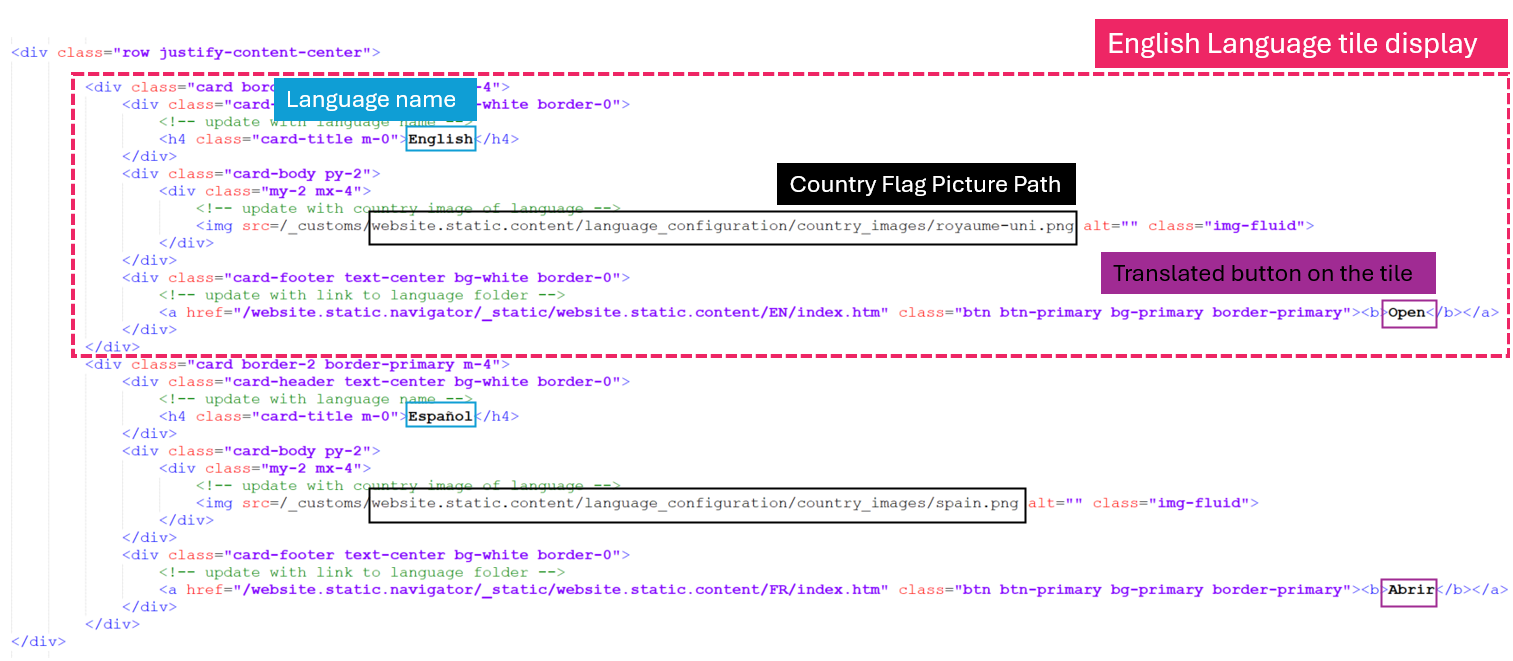
Adding/Editing a language tile
By default, language tiles are available for English and French languages. Therefore, no further configuration is required for these two languages.
For any other language, you need to set up a new language tile.
To add/edit a language tile:
1. Insert an image of the adequate country flag in png format in the "country_images" folder.
The default path is C:\ProgramData\MEGA\Hopex Application Server\<name of the HAS instance>\.shadowFiles\website.static.content\<date of the last generation>\wwwrootTemplate\language_configuration\country_configuration\country_images.
2. Open the "index_severalLanguages.htm" template in edit mode
3. Edit the adequate information:
• Language name
• Country flag picture
• Open button on the tile