Creating Groups
The object descriptor structure is made up of several linked groups organized in a tree. Each group relates to an object and specifies the query or link, which enables passage from the previous object to this object.
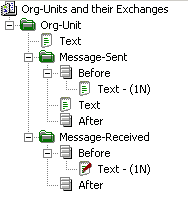
Example: You can display the messages sent by each org-unit.
To create a group:
1. Right-click the folder representing the described object (Example: Org-Unit) and select New > Group.
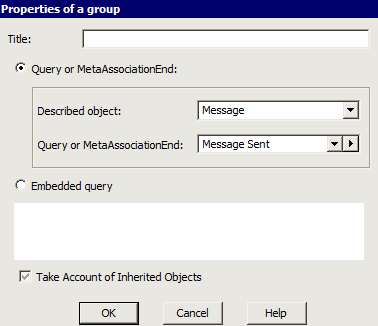
The Group Properties dialog box opens.
2. (Optional) In the Title field, enter a title.
 In most cases, you may choose not to give a Title to the group, since the object and query names provide sufficient information to identify the group.
3. You can select a registered query/MetaAssociationEnd or embed a query. Select either:
• Query or MetaAssociationEnd to select a registered query.
 A MetaAssociationEnd is the extremity of a MetaAssociation linking the MetaAssociation to a MetaClass. Concrete links as well as generic links are proposed in the list of MetaAssociationEnds.
 Example: querying organizational processes linked to an operation, you will see all links connecting these two object types, including the "Behavior" generic link that will find the organizational process describing behavior of the operation.
In the Described object field, select the described object.
Example: "Message" object
In the Query or MetaAssociationEnd field, select the query/MetaAssociationEnd.
Example: “Message-Sent”.
• Embedded query to embed a query that you do not want to save in the repository. If you have a specific need to write a query that will never be reused elsewhere. Enter your query code directly in the corresponding frame.
For more details on queries, see Hopex Common Features.4. If the general option on variations is activated, the Take Account of Inherited Objects option is displayed.
You can choose to:
• follow default behavior defined at descriptor level (see Descriptors and Inherited Objects): keep the check box grayed:  (or
(or  according to the selected Windows theme).
(or according to the selected Windows theme).• activate or deactivate the option at group level (by selecting or clearing the check box).
5. Click OK.
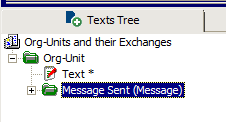
The created group is displayed under the described object folder.
Adding Text to a Group

Specifying text execution conditions