Indicating a URL in an E-mail
To be able to add the URL to the Hopex Web Application in an e-mail, you must previously specify access to Hopex in user options.

For more details, see
Hopex Power Supervisor, chapter "Managing users", paragraph "Managing Users from the Administration Desktop (Web)".
You must specify the URL in the body of the message. To do this, you can select an object:
• directly via an absolute identifier (IdAbs=),
• by using a query (Query=)
The query relates to the workflow subject or to the repository root (GetRoot)
• by using a Macro(Macro=)
The macro must implement the function getUrlObject(WorkflowContextAction) which returns an object.
• by using a workflow subject (Subject).
Adding a URL
To add a URL:
1. Open the properties dialog box of the workflow action corresponding to sending of the e-mail.
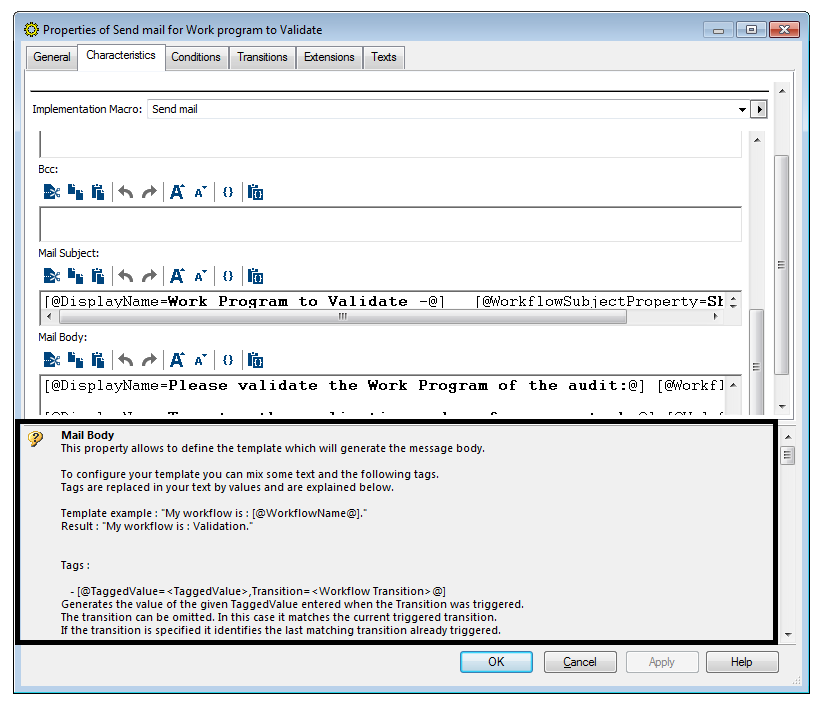
2. In the Characteristics tab, configure the body of the message as indicated in Help.
To access help, click the Mail Body field. The detail of configuration of body of the message appears at the bottom of the dialog box. This configuration returns the text of a link of URL type, enabling access to an object from an e-mail.
Opening the application on a specific tab
To allow the user to directly access the appropriate tab in the application, you must carry out an additional configuration, which consists of:
• create an affinity and connect it to the appropriate Desktop Container.
A Desktop Container corresponds to a tab in the application.
• configure the workflow action concerned.
For more details on affinities and Desktop Containers in general, see technical article
Hopex Power Studio - Versatile Desktop.
Creating an affinity and connecting it to a Desktop Container
To create an affinity and connect it to a Desktop Container:
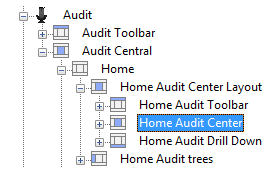
1. In the MetaStudio navigation tab, expand the folders to reach the desktop for which you wish to configure access.
2. Select the target Desktop Container.
The Desktop Container concerned must be at the lowest level in the desktop tree.
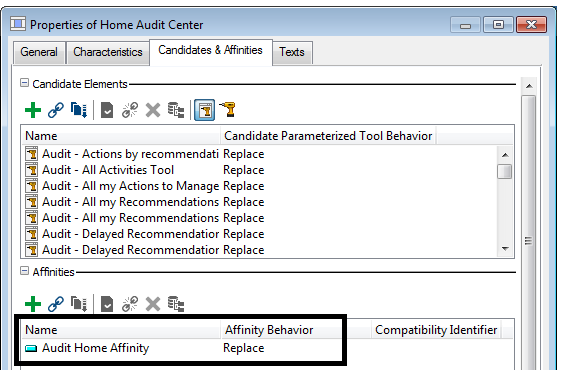
3. In the properties of the Desktop Container, select the Candidates & Affinities tab.
4. Create an affinity, and in the Affinity Behavior field, select the value "Replace".
In the example above, an affinity is connected to the "Audit Home" desktop, which corresponds to the Home navigation tab of the Hopex audit solution.
This affinity will serve to complete the URL specified in the workflow action corresponding to message sending.
This configuration is supplied by default. If you have customized the standard workflow, you must also perform this customization.
For your own workflows, you must create and connect an affinity to the appropriate "Desktop container" in the same way.
Configuring the workflow action
You must now configure the workflow action concerning e-mail sending by referencing the previously created affinity.
To configure the corresponding workflow action:
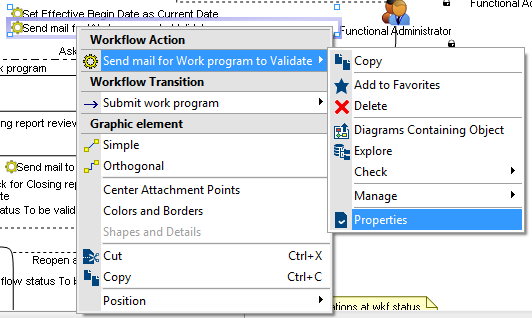
1. In the workflow definition diagram of the workflow to be modified, right-click the workflow action to be configured and select Properties.
2. In the properties of the workflow action, select the Texts tab and in the drop-down list select Mail Body.
In the message configuration text, you must complete URL configuration by adding a a string of this type:
,Affinity=~OhiFhJ5eJXd9[Audit Home Affinity]
Example of text to be inserted in body of message
[@DisplayName=~htNzOjVgGHTM[To access the application and execute your task,]@] [@Url,Subject,Tool=PropertyPage,Application=~2zopd2TnFDcL[GRC Solutions],Desktop=~2hrUiL8DGX58[Audit],Name=~w7LgEpROGXPB[Click here],Affinity=~OhiFhJ5eJXd9[Audit Home Affinity]@].
Result obtained
When the user clicks a link in the e-mail received, the application opens.
When configuring a workflow supplied as standard, you may need to configure the Collaboration tree, for example by adding folders in the Collaboration navigation window (in the case of adding new workflow statuses).
Configuring a workflow requires expertise in
MEGA APIs. You can if necessary seek the assistance of a product engineer. See also "All about starting with APIs" for more information on using
Hopex APIs.