The Explorer
The explorer allows you to view repository objects and links and to carry out impact analyses. Its use is similar to that of the Windows explorer: objects are represented in the form of a menu tree, which allows you to navigate easily and to have an overview of all the diagrams, objects and links specified in the repository.
Activating the Explorer
To activate the Explorer:
1. Click the main menu and select Settings > Options.
2. In the Options tree, expand Tools > Explorer.
3. In the right pane, select the Activate Explorer option.
 This option is activated by default for functional administrators and the HOPEX Customizer profile.
Exploring an Object
To run the explorer on an object :
 Right-click the icon of the object you want to explore and select Explore.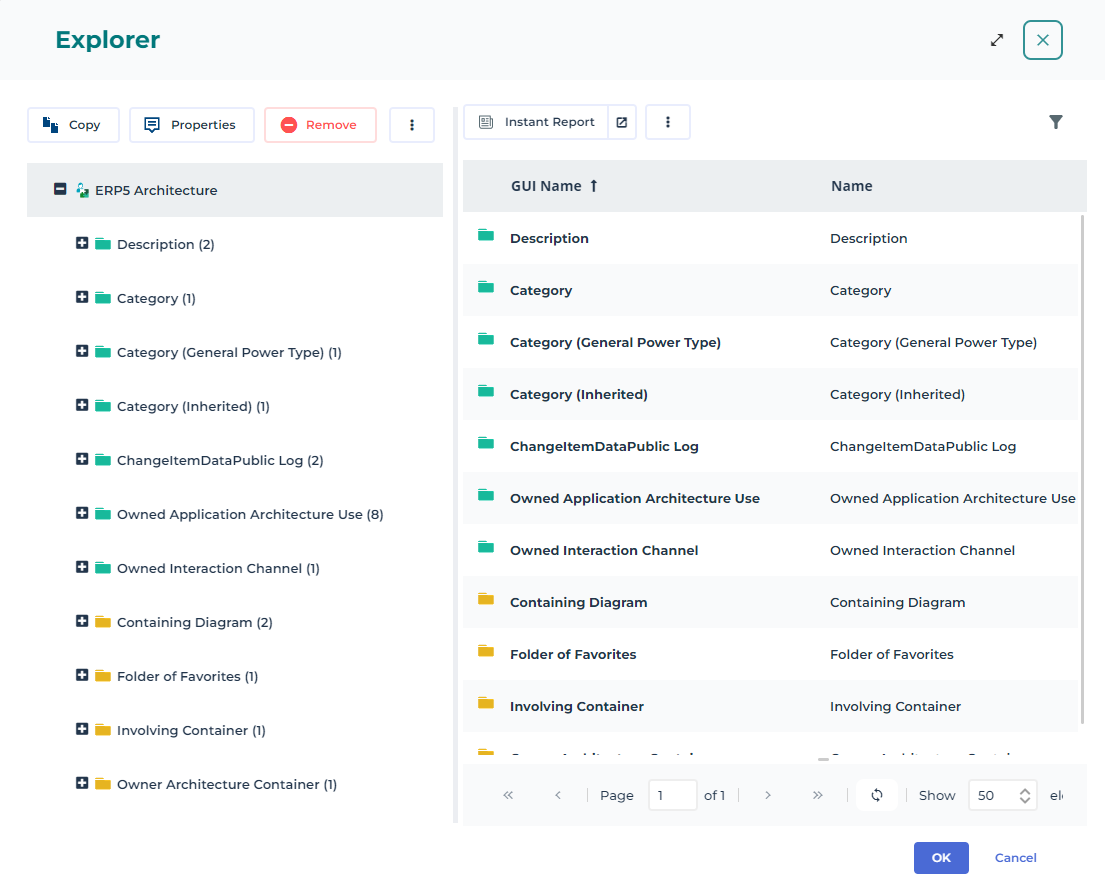
The explorer details:
• the object descriptions  (green file)
(green file)• the object impacts  (yellow file) on other objects
(yellow file) on other objectsThe number in brackets indicates the number of elements for this object type.
By default, only the files containing elements are displayed.
Viewing repository objects
The Description icon (green folder) allows to display the object description. When you run the explorer from an object, the links that describe this object are displayed.
Description icon (green folder) allows to display the object description. When you run the explorer from an object, the links that describe this object are displayed. The description of an object includes the more basic objects that define it. For example, the operations of an organizational process are part of the description of the organizational process.
To view the objects connected to the object you are exploring:
In the tree, click an type of object or link, preceded by a green folder.Objects connected to the selected object are displayed on the right.
View the object impacts on other objects
The Impact Analysis icon (yellow folder) allows to view whether the object you want to explore has an impact on others.
Impact Analysis icon (yellow folder) allows to view whether the object you want to explore has an impact on others.Objects included in the impact analysis are the objects that will impact the object being analyzed if they are modified. For example, an organizational process is modified if one of the operations it contains is modified or deleted.To view the objects impacted by the object you are exploring:
In the tree, click an object type preceded by a yellow folder:E.g.: click “Diagram” to view the other diagrams featuring the object.
Show unused links
Empty Collections  shows the unused links around an object. It applies to description folders (green folders) and impact analyses (yellow folders).
shows the unused links around an object. It applies to description folders (green folders) and impact analyses (yellow folders).To view unused links around the object:
In the toolbar, click Empty Collections .You can create objects for these unused links or connect them to already existing objects. For more details, see Creating objects, and Connecting, disconnecting and deleting objects.Exploring an other object
To quickly open a second explorer on an object:
Right-click the object you want to explore and select Explore.A second explorer window opens.