Revising Reports MS Word
In the report MS Word properties, the Revisions page enables to indicates the date and sender of the revision request as well as the version number.
You can create revision notes to keep trace of the various report MS Word revision phases. Usually, the user creates a revision note when it has been decided to modify the report MS Word or the corresponding object. It is however possible to create a revision note at any time, for example when incorporating an existing procedure in Hopex.
To create a revision note:
1. Access the reports MS Word related to the object.
2. Access the report MS Word properties and display its Revisions page.
3. In the Document Version field, enter the current version of the report MS Word.
 When you create a revision note, this number is used in the Revision Version. This is the report MS Word version at the time the revision note is created.
4. Click New  .
.
.5. Create the note:
To reuse a note already created, in the Note field, click the arrow and select the note. The Type and Description parameters of the note are automatically specified.• In the Note field, enter the name of the note.
• in the Type drop-down list, select the note type.
• In the Description field, enter the description of the note.
• Click OK.
In the Revision Request Date, the current date is automatically specified.
In the document Revision Version, the document version (if specified step 3) is automatically specified.
6. (Optional) If needed, modify the Revision Request Date.
7. (Optional) If needed, modify the Revision Version.
8. Click in the Sender field, then the arrow and use the query tool to select the note sender.
The note sender name appears in the corresponding field.
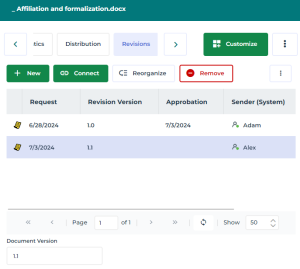
Example of a series of revision notes