Sharing with Other Users
In Hopex, you can share with other users. You can:
• share by email: an object or a diagram
• follow an object
• add review notes to an object
• add tags to an object
• add an idea
See also:
Sharing an Object as Email
You can share an object as email, either:
• by entering the names of the recipients
• or by entering the email address of the recipients
 An object can also be a report. Directly in a diagram, you can also share a diagram by email.
The email recipients receive a link redirecting to Hopex and opening the properties of the shared object (the recipient must own the rights to see this object).
To share an object as email:
1. In Hopex, right-click the object and in its contextual menu, select Share as Email.
(Diagram) In the diagram toolbar, click Share diagram  .(Report) In the report toolbar, click Share report .
The Share <Object name> as email window appears.
The Get a link section enables you to copy the link that is inserted in the email.2. In the Recipients field, enter letters of the name of the person (Hopex user) with whom you want to share this object.
The list of persons whose name contains these letters appears.
If the list is long, enter more letters.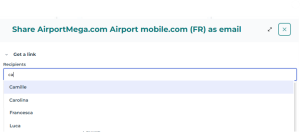
3. Press the down navigation key to select the person's name or select it using your cursor.
4. Press [Enter].
 You can add several persons whose name starts with the same letter without closing the list.
5. Click outside the list to close it.
You can add several persons to the recipient list.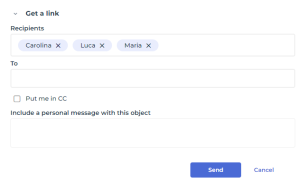 To remove a person from the recipient list, click the cross
  beside its name.
6. (If needed) In the A field, enter the email address to which you want to send the object sharing.
7. To receive a copy of the email, select Put me in CC.
8. (Optional) In the Include a personal message with this object pane, enter the text of the email.
9. Click Send.
An email is sent to the recipients of the message as well as to you if you have selected the option.
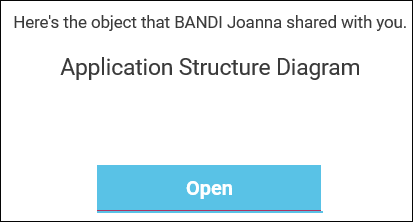
10. When the recipient clicks Open, a Hopex desktop opens (a second desktop if the user is already connected, otherwise the Hopex connection window opens) and displays the object characteristics.
The user must connect with a profile that has access to the object to see it.In the case of a “visual” object (e.g. a diagram or a capability map), the link redirects to the object itself.