Card of an Object
The card of an object is meant to provide an overview (in read only) on the essential properties that identify the object in question. The nature of the data displayed depends on the Solution you are using.
Cards can be displayed:
• in a list in the browse area, from the navigation menus and their submenus.
• in the Edit area, from the Overview property page of the object.
Card of an object (list)
A card list is accessible via:
• the navigation menus and their submenus.
Objects are listed alongside their main characteristics.
• an object list displayed in the edit area via a navigation menu
To display a list of cards, click:
• Browse  in the navigation area
in the navigation area• when hovering the cursor over a navigation menu
• to the right of a submenu
 Some navigation menus are broken down into submenus. Browsing is available for some of these submenus.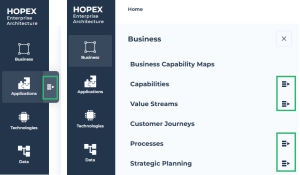
• Browse  in the edit area, to the left of an object list tabs
in the edit area, to the left of an object list tabs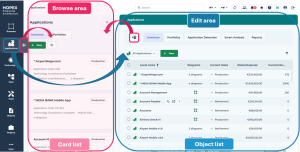
Managing the display of a card list
You can organize the display of your card list using the filters at the top of the list. These filters enable to:
• filter the objects by group
In certain Solutions, filtering by group is not available. In that case, the filtering window does not show.• perform a search over the objects contained in the list
E.g.: filters available in a card list of Risks in the Hopex GRC desktop.
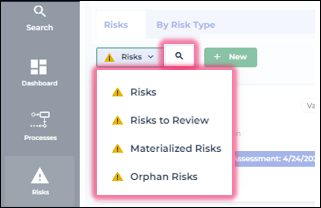
You can also create an object from a card list using the New  button.
button.Card content in a list
In a list, the card only shows a limited amount of information. It is organized as follows:
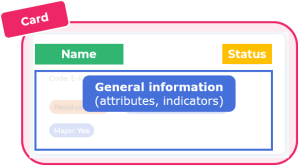
In some Solutions, the cards show buttons when hovering the cursor. These buttons give access to elements related to the object of the card. These elements are presented as a tree or list.
The list unfolds beneath the object card, in place of the other cards of the list. For more information about these buttons, see the documentation of the Solution.
[If applicable] From this tree, you can:
• drag & drop an object into a diagram
• drag & drop an object into the property pages of an other object
• click the object to open its property pages in the edit area
• open an object property pages in a new tab
Example of an unfolded tree in the card of an application (Hopex Enterprise Architecture desktop).
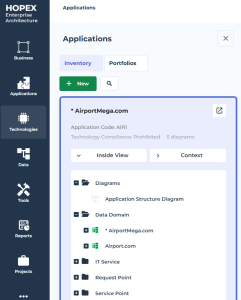
To get more information about an object and access to the card Overview:
• click the card in the list. The Overview page opens in the edit area.
• click Open in a new tab  to open the Overview page of the card in a new tab of your Hopex desktop.
to open the Overview page of the card in a new tab of your Hopex desktop.Card of an object (property pages)
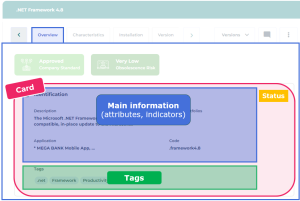
In an object property pages, the Overview page displays the object card with more details.
It is organized as follows: