Managing an Excel Template
The Excel template builder proposes several edition modes:
• the From scratch mode to create an Excel template specific to your needs. The wizard guides you through the steps necessary to the creation of the worksheets of your Excel template.

• the From an uploaded template mode to carry out changes on the not standard Excel template of your choice.
• the From a HOPEX template mode to carry out changes on the standard Hopex Excel template of your choice.
Modifying a template involves changing the worksheets and/or creating new ones.
At the end of the editing process, you can whether replace the exising template or create another one.
Selecting the Excel template to edit
To edit the template of your choice in the Excel template builder:
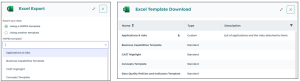
1. In the template builder wizard, select the template that interests you:
• if you have selected the From an uploaded template mode, select the template from the File to upload area.
• if you have selected the From a HOPEX template mode , select the template from the HOPEX template area.
2. Click Start.
A new window opens guides you through the steps necessary to the modification/creation of the worksheets of the selected template.
Finishing the Template Edition
Export from this template