Using Data Discovery in Online mode
 To use Hopex Data Discovery in Online mode, you must have DDISC license.
To run the Online Data Discovery:
1. In the navigation bar, click Tools.
2. Click Online Data Discovery.
The Hopex Data Discovery tool opens in a new browser tab.
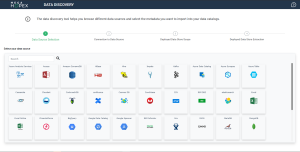
3. Select the data source. Click the Connect button on the source.
The connection settings appear. They depend on the chosen data source. You can view the associated information.
In the appendix of the Hopex Data Governance guide are detailed the connection options of the JDBC driver for each data source. See "Appendix - Data Discovery Connection Options".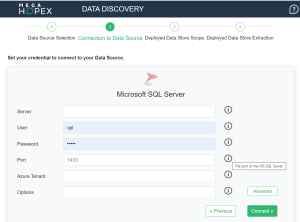
The Advanced button enables access to advanced parameters.
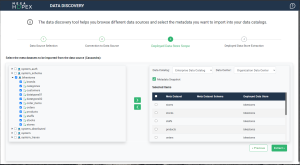
4. Once connected, in the left tree, select the objects to import into Hopex.
5. On the right, select the repository data center that will hold the metadata and the catalog that references it.
For more details on data centers, see Data Source Infrastructure.6. Using the first arrow, add the desired items to the catalog tree.
You can create a snapshot of the selected metadata set by checking the MetaData Snapshot box. See Snapshot of a Data Catalog.
A snapshot displays statistical indicators relating to the quality of Metadata. To obtain this information, the tool only executes data read queries. The metadata data is neither modified nor exported.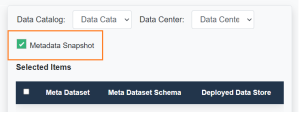
7. Click Extract.
To view the objects imported into Hopex:
1. In the navigation menu, click Catalogs.
2. Select the data catalog.
3. Expand the Managed Data Sources folder.
See also: Contents of a Data Catalog.