Creating a Process Diagram in Graphical Mode
To create a process diagram in graphical mode:
1. In the process list, click the Create Diagram  icon related to the selected process.
icon related to the selected process.2. Select Create a diagram in graphical mode.
The diagram creation window opens.
 You can also create a Process diagram from the homepage > Quick Access > Actions tab > Create a Process diagram.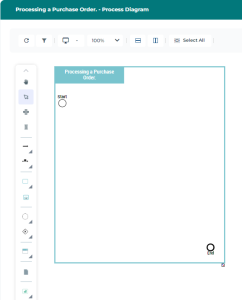
3. To complete the process diagram, add existing or new objects into the frame, using the following icons:
• Sequence Flow 
• Message Flow with Content 
• Operation 
• Processes 
 See Processes.
• Event 
See Defining Events.• Gateway 
See Using Gateways.• Participant 
• Data Object 
See Using Data Objects.• Application Used 
• Risks  and Control
and Control See Risks and Controls.Object display
Some objects are not displayed by default in the graphical editor. To make them appear:
 Enable the display of the desired objects using the Views and details
  icon.
icon. 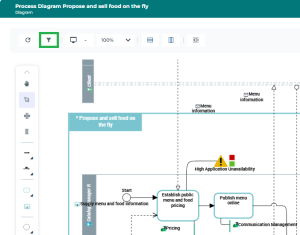
Actions on objects
For more details on:
• Adding objects, see Adding Objects to a Diagram.
• Links between, see Handling Links Between Objects.
• Deleting objects, see Removing and Deleting an Object from a Diagram.
Object coloring
To highlight an object, you can change the color of its graphical shape (fill and/or outline).
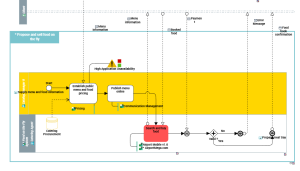
Rearranging objects in the diagram
The following icons allow you to automatically rearrange the objects in the diagram:
• BPMN Vertical Diagram  : Rearranges the diagram objects vertically.
: Rearranges the diagram objects vertically.• BPMN horizontal Diagram  : Rearranges the diagram objects horizontally.
: Rearranges the diagram objects horizontally.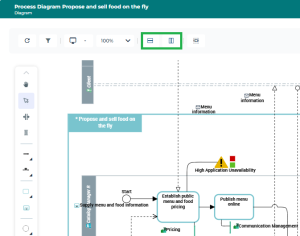
Diagram rearrangement thresholds
Rearranging a complex diagram may take several minutes.
By default, a warning appears if the diagram contains more than 50 Sequence Flows, requiring user confirmation before proceeding with the rearrangement.
To adjust this value:
Use the user option Number of links that requires confirmation for automatic reorganization via the Main Menu > Settings > Options > Diagrams > Display. By default, automatic rearrangement is disabled if the diagram contains more than 100 Sequence Flows.
To adjust this value:
Use the user option Maximum number of links for automatic reorganization via the Main Menu > Settings > Options > Diagrams > Display.